Summer Refresh: Updated Classrooms and Learning Spaces

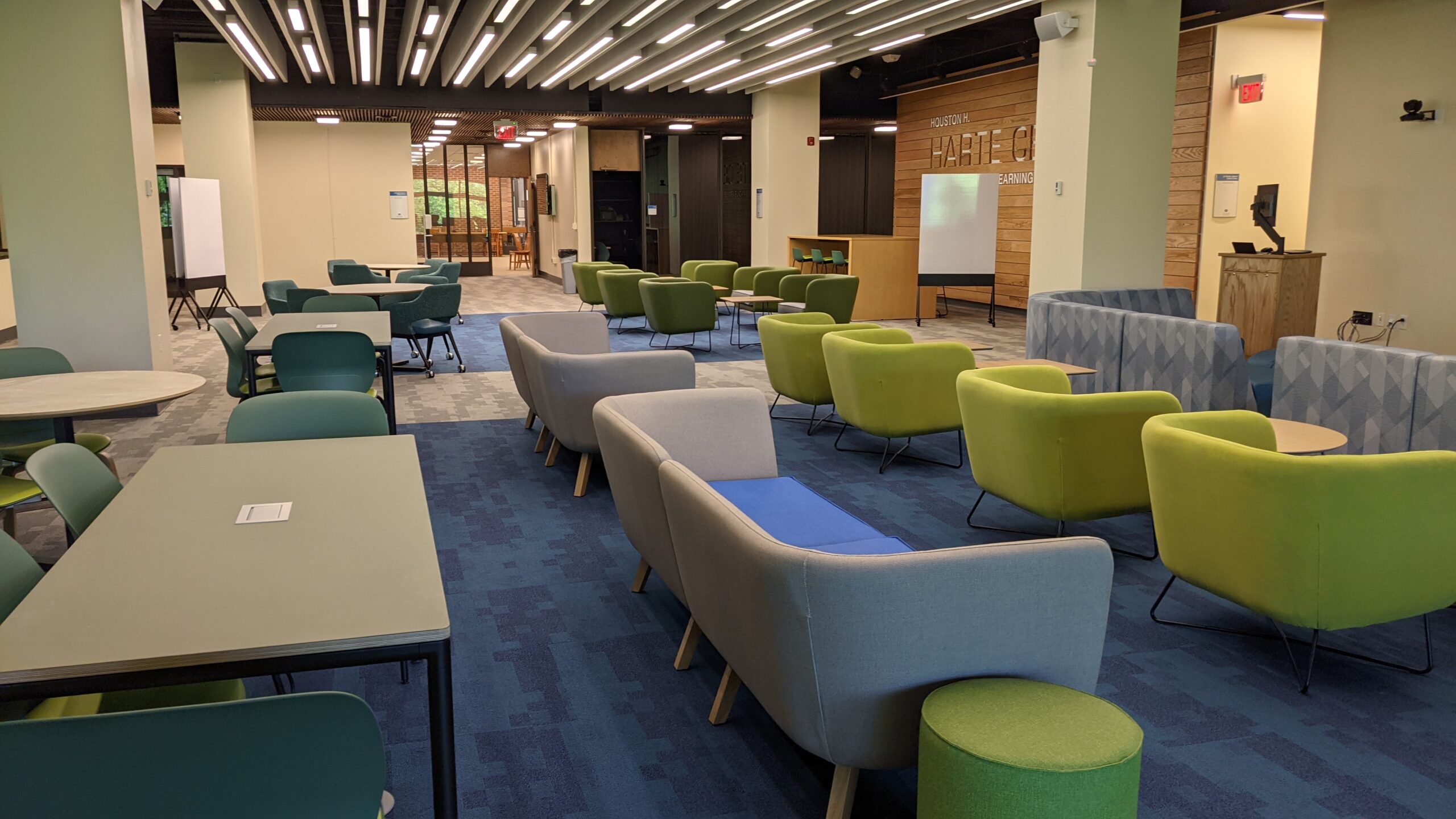
The Houston H. Harte Center for Teaching and Learning, Leyburn Library (Level 1)

Video Recording Studio 101
Lighting control wall mounted touch panel, 8 light panels, 4 motorized backdrop screens, and sound proofing wall panels.

Special Collections Classroom 102
Laser projector, tensioned screen, ceiling microphones and speakers, lectern with HDMI and USB-C connectivity, touch panel, monitor, Blu-ray player, document camera, Solstice Pod, front and rear cameras for videoconferencing and lecture capture.

Innovation Classroom (Leyburn 109)
Interactive projector, whiteboard, 2 sidewall flat panel displays, ceiling microphones and speakers, lectern with HDMI and USB-C connectivity, touch panel, monitor, Blu-ray player, document camera, 3 Solstice Pods, front and rear cameras for videoconferencing and lecture capture.

Teaching Hub (Leyburn 119)
Laser projector, tensioned screen, 2 sidewall flat panel displays, ceiling microphones and speakers, lectern with HDMI and USB-C connectivity, touch panel, monitor, Blu-ray player, document camera, Solstice Pod, front and rear cameras for videoconferencing and lecture capture.

Peer Tutoring Rooms (Leyburn 121 and 122)
60” flat panel display, video conference sound bar, AV cabinet with HDMI and USB-C connectivity, wall mounted touch panel, and Solstice Pod.

Video Editing Suites (Leyburn 123, 124, and 125)
Studio vocal microphones on boom arm and sound proofing wall panels.

Collaboration Gallery (Leyburn 128)
Laser projector, tensioned screen, ceiling microphones and speakers, lectern with HDMI and USB-C connectivity, touch panel, monitor, Blu-ray player, Solstice Pod, front and rear cameras for videoconferencing and lecture capture.

Oral Presentation Rooms (Leyburn 130 and 140)
 60” flat panel display, video sound bar, AV cabinet with HDMI and USB-C connectivity, microphone, camera for lecture capture, wall mounted touch panel, and Solstice Pod.

Digital Signage
New RISE displays across from the elevators.

Leyburn 222 and 223
Two new University classrooms! Laser projector, tensioned screen, ceiling microphones and speakers, lectern with HDMI and USB-C connectivity, touch panel, monitor, Blu-ray player, document camera, Solstice Pod, front and rear cameras for videoconferencing and lecture capture.

Elsewhere on Campus

Science Addition AG14, 114, and 214
Laser projector, tensioned screen, ceiling microphones and speakers, lectern with HDMI and USB-C connectivity, touch panel, monitor, Blu-ray player, document camera, Solstice Pod, and rear cameras for lecture capture.

Wilson Hall 2018
2 laser projectors, 2 tensioned screens, ceiling microphones and speakers, lectern with HDMI and USB-C connectivity, touch panel, monitor, Blu-ray player, document camera, Solstice Pod, and rear cameras for lecture capture.

COMING Fall 2021

Leyburn 301
Laser projector, pull screen, wall mounted touch panel, Blu-ray player, new Apple computers, and new furniture.

 

NEW! Comment Library in Canvas Speedgrader! Reuse Frequently Used Comments in Speedgrader!

We KNOW you love Speedgrader to annotate student submissions, leave personalized feedback and enter grades—all in one! And we also know you wish there was a  way to add and save comments for reuse whilst grading.

Well, now there is! Instructure has been listening to your feedback and has introduced a new feature: the Comment Library.

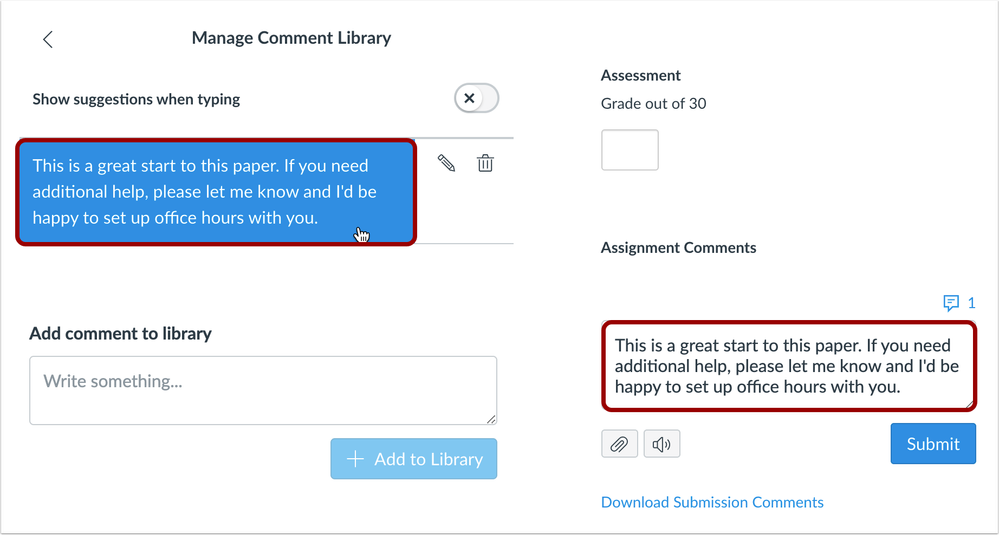
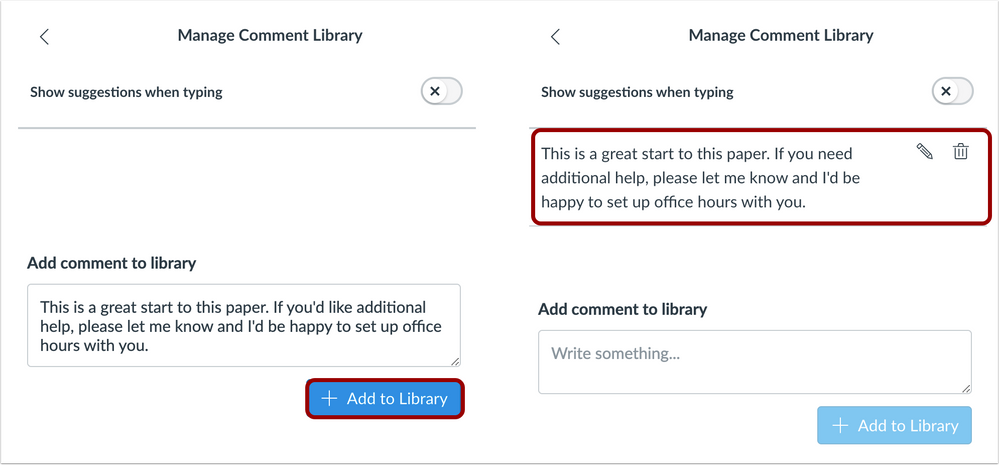
The Comment Library allows you to save frequently used comments in SpeedGrader and be reused across multiple students and assignments. Comments you have added to the Comment Library are accessible from each course in which you are enrolled as an instructor. Comments can be edited in and deleted from the library at any time.

comment-library-1.png
Open the Comment Library


comment-library-2-add-to-library.png
Add a comment to Comment Library

Comments can be added directly from the Comment Library by opening the library and clicking the comment that should be added. The library will close and the comment will display in SpeedGrader.

comment-library-3-select-comment.png
Add a comment via the Comment Library

Notes: 

  • Comments are saved per user regardless of course, so comments that you save in one course will also display when viewing SpeedGrader in another course.
  • The Comment Library functionality is not supported in the assignment submission details page.

Have questions? Need help? Contact the ITS Information Desk at 540.458.4357 (HELP) or send an email help@wlu.edu.

How to Share Your Pronouns on Zoom

3x3 grid of various faces representing different ethnicities, ages, and genders, with different preferred pronouns

Have you updated your Zoom client lately? No? You should!

Why?

Wither version 5.7.0, Zoom has added new options for sharing your personal pronouns.

This new feature adds a dedicated text field on the profile page where you can type in your preferred pronouns and a drop-down menu with sharing controls for your pronouns:  always share, never share, or have Zoom ask before every meeting if pronouns should be displayed.

Pronouns will appear in parentheses next to people’s names in Zoom meetings and will also be visible under people’s names on their profile cards in the Zoom desktop client and mobile app.

screenshot of Zoom to show where pronouns will appear

“In introducing the Pronouns feature, we hope this will help everyone feel better able to express themselves and respectfully address others, which ultimately leads to a stronger culture of connectivity and an improved communications experience,” Zoom wrote in its announcement.

Check out Adding and sharing your pronouns in the Zoom Help Center to get started. But first, you’ll want to update your Zoom to version 5.7.0!

Have questions? Need assistance? We got you! Contact the ITS Information Desk at 540.458.4357 (HELP) or email help@wlu.edu.

The Houston H. Harte Center for Teaching and Learning is now OPEN!

Looking for Academic Technologies or Harte Center staff? We’ve moved!

You can now find us —

  • Senior Academic Technologist Brandon Bucy
  • Associate Director of Assessment Kristy Crickenberger; 
  • Director of the Harte Center Paul Hanstedt;
  • Director of Academic Technologies Julie Knudson;
  • Director of Fellowships Matthew Loar;
  • Academic Technologist Helen MacDermott, and
  • Harte Center Administrative Assistant Brittany Wright

— on the 1st floor of Leyburn Library.

You will ALSO find lots of new, comfortable, and inviting spaces to read, work, or meet with colleagues! And whiteboards galore! 😍😍😍

Please come by to say hello! We’re also reflecting upon and recovering from this past academic year, and preparing to support W&L faculty and staff for a hopefully LESS stressful and chaotic Fall Term.

Celebrate Global Accessibility Awareness Day!

The tenth annual Global Accessibility Awareness Day (GAAD) is this Thursday, May 20th.

GAAD was launched to highlight the need for increased digital accessibility by getting people talking, thinking, and learning about digital access and inclusion for all and, more importantly, people with different abilities and talents.clip art of a blind man with a cane, woman with a hearing aid, a wheelchair user, a woman with a prosthetic limb, an older person, and a man with a limb difference, all standing together

Approximately 15 percent of the world’s population have a disability, according to the World Health Organization, which means that more than one billion people could face daily challenges when using digital devices. 

What is Accessibility?

Accessibility is the ability of a website/mobile app/electronic document to be easily navigated and understood by the widest range of users possible, including people with visual, auditory, speech, motor, neurological or cognitive disabilities.

Note that accessibility is not a discrete feature of a website, tool, or app. It’s an on-going aspect of a managed process made up of many intentional design and development decisions, based on real-world practice, institutional policy, public standards, and awareness of the diversity of user experiences.

Why Accessibility Matters

The World Wide Web is an increasingly important resource in many aspects of life: government information and services, education and training, commerce, news, workplace interaction, civic participation, health care, recreation, entertainment, and more. In some cases, the Web is replacing traditional resources.

Therefore, it is essential that the Web be accessible in order to provide equal access and equal opportunity to people with diverse abilities.


Link to Web accessibility – What does it all mean? (.docx, 17 MB) transcript.

Web accessibility is about eliminating barriers that prevent access to information and functionalities on websites.

How to Participate in GAAD 2021

Want to Present at Fall Academy?

The 2021 Fall Academy will take place from Monday, August 23 to Friday, September 3. We are now accepting your proposals!

If you would like to offer a session, please let us know the following information:

  1. Title
  2. Description
  3. Presenter(s)
  4. Duration
  5. Preferred date(s) and times – we’ll try to accommodate, but some sessions that are already booked might prevent this.

Questions? Contact Julie Knudson (jmknudson@wlu.edu, x8125) or Helen MacDermott (hmacdermott@wlu.edu, x4561).

Thank you!

On #Ungrading, by Mikki Brock

What an honest, eye-opening, and marvelous summary of how Dr. Mikki Brock, Associate Professor of History, incorporated ungrading this past term!

I want to share some reflections on my first semester of #ungrading, which I did in my 100-level survey & 300-level seminar. This will be a long thread, but the TLDR is that I think it went really well. I loved it, the majority of my students loved it, & we all learned a lot. 1/ 

First, though, let me acknowledge that it is easier for me to do this type of experimentation than others because of my own privilege: tenured, white, a “known quantity” to my students, and supported by a dept. chair & cohort of colleagues testing the waters with me. 2/ 

My own positionality matters, and we need to keep pushing for *all* faculty to have these opportunities. 3/ 

So: the vast majority of my students reported that they enjoyed ungrading. Yes, some felt anxious about it, but most said it freed them to take risks, to think deeply about their learning, and to pay attention to my feedback rather than simply glance at a number on a page. 4/ 

Many also noted that it reduced their stress and left them more empowered and engaged than they expected. Others also said that ungrading made them want to work more, not less, because they were motivated by curiosity and commitment to the class—things beyond just pleasing me. 5/ 

A few did say they preferred traditional grading (interestingly, all men), but they also said they understood *why* I chose to ungrade. Even if they didn’t love the system, I think moving forward they’ll have a more expansive view of what learning is, and what it is for. 6/ 

I think there are some things I did well this term. Above all, I kept things simple and transparent. Lots of check ins and no mystery. Individual assignments included short self-assessments, and I also did longer, more general ones at midterm and finals. 7/ 

I cannot stress enough what a joy these self-assessments were to read. They were, for the most part, honest, vulnerable, and insightful. Above all, they provided an important opportunity for feedback and dialogue beyond just commenting on their work itself. 8/ 

There are some things I’d do differently. Next time, I’ll hold more required student conferences. I’ll try to be a bit more precise in sharing with students *my* objectives for the class, rather than just asking for theirs. 9/ 

I gave them even more feedback on their work than I usually would, but I probably could have made this feedback structured in a way that made it clearer for them and less time consuming for me. This is perhaps the one downside to ungrading: it is actually more work! 10/ 

In the end, students graded themselves, because my institution requires grades. As someone who tends to like lots of control and oversight, this was actually a really big step for me, and I am proud that I took it. 11/ 

One of the things that put me at ease was that I set a “floor”: students had to complete all assignments *according to the directions* in order to earn a B- or above. Most of my students did so, and I did not feel the need to change any of the grades students gave themselves. 12/ 

The final grade distribution was similar to previous terms, if maybe a smidge higher, which I attribute to the fact that I assigned a bit less work than usual (pandemic!). Plus students just did a really great job, esp. given all the things they were grappling with this term. 13/ 

For anyone curious about ungrading, I have a four suggestions for getting started. First, read @SusanDebraBlum‘s Ungrading and @Jessifer‘s blog; these were essential in giving me the confidence (and practical advice!) to do this. 14/ 

Their work also afforded me the language to explain to my students *why* I was doing things this way. And I did a lot of explaining, because I think students deserve to understand my approach to their learning, even if a few ultimately remain unconvinced. 15/ 

Second, I recommend starting small. In fall, I did only participation; students assessed this part of their grades based on their preparation + engagement. This was low stakes & helped me understand the process. There are also other ways to ungrade. It isn’t all or nothing! 16/ 

Third, try ungrading in a senior-level class first, as upperclass-folks tend to be more confident, they often know you, and these courses are generally smaller. My jrs and srs seemed to really like & appreciate the ungraded approach. I was surprised by how onboard they were! 17/ 

Last, if you are able, find like-minded colleagues who want to go on this journey with you. Meet regularly and talk about anxieties, aims, and strategies. We were also very lucky to have @curriculargeek provide us with constant encouragement and practical help. Thanks, Paul! 18/ 

In sum, I’ll continue to improve my own process, but I doubt I’ll ever return to the traditional system, because I just don’t believe in it. Ungrading was more work, but it was also more joyful. It put trust & curiosity at the center of my classroom. 10/10 would recommend. /fin 

Want to hear more from Dr. Brock and other W&L professors who adopted ungrading? Look for the Ungrading panel session at Fall Academy, which will be August 23 – September 3, 2021.

Save the Date! Perusall Exchange 2021, May 17-28

Perusall - Every student prepared for every class

Perusall is a social reading platform that allows students and instructors to collaboratively markup documents (PDF, EPUB, Word and Excel documents, source code files); video that is hosted on YouTube, Vimeo, Google Drive, or Dropbox; podcasts; and websites.

Students help each other learn by collectively annotating readings in threads, responding to each other’s comments, and interacting with one another.

Only 20-30% of students in the average classroom do assigned reading; in Perusall classes, > 90% consistently do the reading. Peer-reviewed, published, and patented research shows that Perusall works.

Incredible stuff, right? And there’s even MORE to be excited about!

From May 17-28, Perusall will host an asynchronous social learning conference with more than 50 sessions across a diverse array of disciplines that highlight innovative pedagogical approaches by instructors using the platform.

You will be able to pick and choose the sessions that pique your interest — whenever it suits your schedule — and engage with the presenters and other participants asynchronously using the Perusall platform.

At the end of the conference, presenters and participants will gather in a live session to continue the discussion.

Among the sessions currently scheduled are:

  • Perusall Pedagogy for Inclusivity and Active Learning
  • From Novice to Expert: Developing Students’ Metacognitive Reading Practices with Perusall
  • Just in Time Chemistry in Perusall
  • Small Teaching: Building Community in the Online Classroom
  • Analyzing the Breaks: Teaching Hip Hop History with Perusall

Sign up now!

We’ll be there. Will you?

An aerial view to really put things in perspective!

In March, the IQ Center took to the skies to gather data for the Geology department.

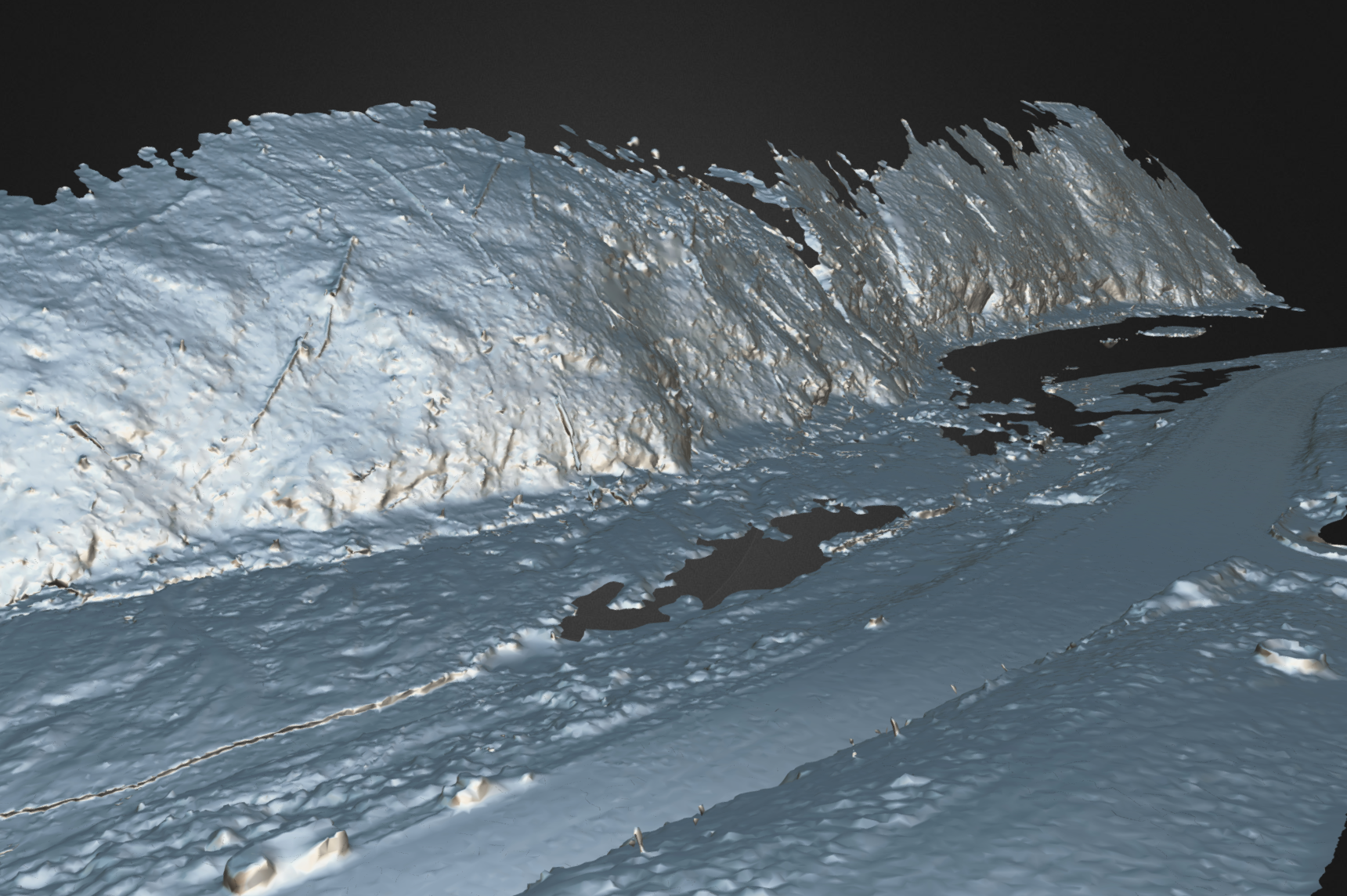
Knowing that some students might not able to attend lab in person, Professor of Geology Chris Connors got some help from the IQ Center to create a photogrammetry model of the rocky outcroppings he was interested in, so students could view the formations from anywhere.

Photogrammetry can be a tricky process. Essentially, the goal is to visually identify common points between multiple photos, and using sophisticated software, stitch the photos together into a 3D model that lets us zoom, rotate, and examine areas of interest.

There’s a lot to consider when shooting for a photogrammetry project.

For one, the shoots can take several hours – enough time for the sun to travel a considerable distance in the sky, which changes light levels, shadow positions, and reflections. This means a cloudy day is ideal, but it can be difficult to plan trips around weather.

Another consideration is how the pictures should be taken. Due to the scale and location of the subject, this project necessitated using the IQ Center’s drone.

This means an extra set of challenges: safe takeoff, flight, and landing, watching battery life, and the multitasking involved with both piloting and taking pictures is a lot to focus on.

The tradeoff is that previously inaccessible shots are now within reach!

View the final photogrammetry model.

Get a behind-the-scenes look at how the IQ Center operates their drone on their Instagram: @wluiqcenter 


Want to incorporate photogrammetry into your course? Contact Dave Pfaff at 540.458.8044, email dpfaff [at] wlu [dot] edu or stop by the IQ Center!

Time for Spring Cleaning! How to Download Videos from YuJa

The past year has seen an unprecedented growth in the use of YuJa. ITS is very pleased at the role this service has played in facilitating teaching and learning on our campus despite the impact of the global pandemic. That said, we are rapidly approaching our allocated storage maximum and need to recover space for the continued functionality of the service.  

You may have already been contacted by ITS asking you to allow us to remove all recordings made or uploaded prior to the start of the Undergraduate Winter 2021/Law Spring 2021 term.

Even if you haven’t, it would be prudent to review your videos and download any that don’t need to remain in YuJa.

Here’s how!

To download multiple recordings:

  1. Log into YuJa at https://yuja.wlu.edu with your W&L credentials and click on Manage Media at the top of the screen:
    red circle around "Manage Media" at the top of the screen when logged into YuJa
  2. Select multiple video files by using shift-click, ctrl-click, or command-click. Choose ctrl-click to add media one selection at a time, or use shift-click to select an entire section of content. You may also navigate to  and choose Select All to choose all content within the folder.multiple videos selected in YuJa using control+click
  3. Click More Actions at the top of the screen.
    Select the desired bulk option. Options include: Bulk Delete, Bulk Move, Bulk Download, Bulk Publish, Bulk Unpublish, Bulk Share, Bulk Owner and Bulk Tag.
    Each option works in the same way as managing a single file; however, actions are applied to all selected files.

    red rectangle around "More Actions" and "Bulk Download" in the menu that appears when you click on "More Actions" at the top of the screen in YuJa


To download a single recording:

  • Log into YuJa at https://yuja.wlu.edu with your W&L credentials and click on Manage Media at the top of the screen:
    red circle around "Manage Media" at the top of the screen when logged into YuJa
  • Mouse over the desired video and click on More …
    red rectangle around "More ..." in menu that appears when you hover over a video in YuJa
  • Choose Downloads from the left-side menu.red rectangle around "Download" in the menu that appears after you click on "More..." in YuJa

    You have a number of choices for your download, depending upon the type of media:

    • Download Media: download an mp4 copy of your video file.
    • Download Original: download the original manually uploaded video file.
    • Download Audio-Only Content: download an mp3 audio file of the video.
    • Download HLS: download a m3u8 download.
    • Download SCORM 1.2: download a SCORM file.

  • Need assistance with YuJa? Contact the ITS Information Desk at 540.458.4357 (HELP), email help@wlu.edu, or stop by Leyburn Library!