If there’s one tweet you need to read, read THIS one!

Thematically, it sounds as if instructors are embracing:

  • Zoom office hours in place of — or in addition to — face-to-face office hours
  • greater flexibility (soft deadlines/due dates, choices/alternatives in projects)
  • collaborative annotating of readings (Perusall, hypothes.is
  • open book and open note quizzes and tests OR shifting from tests to assignments/projects
  • scheduling “break days” into the syllabus
  • allowing themselves to be “real” (allowing pets to show up on camera)
  • actively checking in on how students are doing physically/emotionally/mentally 

This thread is pure gold. Many thanks to Professor Dennie for asking this great question!

BONUS: W&L Peeps You Should be Following on Twitter (If we’ve missed someone, please let us know!)
Watch the final Pedagogy and (perhaps you have) Pizza workshop of 2020!

[must log in with W&L credentials]

Many, many, many thanks to the wonderful W&L students Julia H., Troy L, Natasha G., Nicky D., and Emma W. who were willing to share their experiences and opinions. We are all deeply grateful for your willingness to tell us honestly how your classes have gone. 

To all W&L students, please know that faculty and staff SEE you and we HEAR you. We CARE about you as people, not just students, and we are HERE for you. We WILL get through this together. ❤️ 

130 IDEAS FOR CHECK-IN QUESTIONS DURING REMOTE LEARNING

Taking time to connect with each student not only helps maintain relationships but also allows us an opportunity to gather important data to inform our assessment. It gives US feedback on the effectiveness of what we are doing. In a bricks and mortar environment, this would be equivalent to informal checkins through the day or the kind of personalised conversations we have when we confer with students individually and in small groups. 

By scheduling regular check-ins with our students, we gather data that can inform plans for ‘where to next’ for their learning.  

Check out this great resource  (.PDF) compiled from the audience of “Inquiry by the Fire” with Kimberly Mitchell, Trevor Mackenzie and Kath Murdoch.

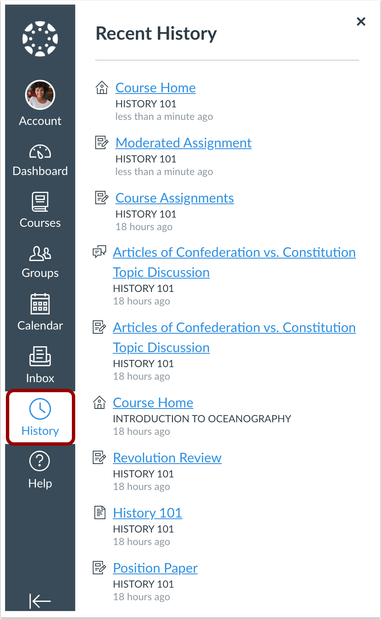
What is that new icon in the global navigation menu in Canvas?

Ever wish you had a quick way to find the last page you visited in Canvas? Now you can! Check out the new Recent History link/button in your Global Navigation menu.

The Global Navigation menu now includes a Recent History link/button (under Inbox). This History link/button displays the most recent pages viewed in Canvas up to the last three weeks. Page content is displayed by title.

erinhallmark_2-1600727024179.png

Questions? Contact the ITS Information Desk at help@wlu.edu or 540.458.4357 (HELP).

Oooh! Access to electronic version of Derek Bruff’s “Intentional Tech”

H/T to Kaci Resau for sharing a link to an online version of “Intentional Tech: Principles to Guide the Use of Educational Technology in College Teaching“, our Winter 2021 selection for the Pedagogy, Books, and Java book club: https://ebookcentral.proquest.com/lib/wlu/detail.action?docID=5910154.

BONUS! You can even download up to 69 pages as a PDF to read on your laptop/computer/mobile device/tablet! 

There’s still space for additional faculty and/or staff members to join PB&J and receive a free paperback copy of the book. Please contact Helen MacDermott and sign up for our three Zoom meetings — all at 12:30 PM EST on Jan 21, Feb 16, and Mar 11, 2021 — at go.wlu.edu/pedagogy.

Still time to register for Tuesday’s Pedagogy and (perhaps you have) Pizza!

Pedagogy and perhaps you have) Pizza

Join Dr. Chanelle Wilson, Assistant Professor of Education and Director of Africana Studies, at Bryn Mawr College, as she facilitates a journey toward deconstructing colonization and racism in the classroom via Zoom next Tuesday, October 13 at 12:30 PM EST.

The session series will provide background information about the intersections of colonization and race, specifically in the context of classrooms and social interactions, at small liberal arts institutions. We will further our exploration with the opportunity to engage in subsequent interactive small group sessions to deepen engagement, skill exploration, and strategy building. The follow-up sessions will focus on locating ourselves in oppressive structures with the analysis of current syllabi and classroom practices and working collaboratively to implement principles and practices of decolonization and anti-racism to disrupt and dismantle institutionalized systems.

Participants will leave this series with products ready to implement, immediately, or at minimum, in Spring 2020.

There is work to be done, and you are invited into the movement.

Sign up at go.wlu.edu/pedagogy.

Technology updates/upgrades for W&L classrooms and learning spaces

The following rooms have received technology upgrades (and continue to be improved upon):

Classrooms:

  • Leyburn Library M47
  • Moot Courtroom
  • Newcomb Hall  116
  • Newcomb Hall  122

Seminar Rooms:

  • Sydney Lewis Hall 426
  • Sydney Lewis Hall 457
  • Newcomb Hall 120
  • Newcomb Hall 304
  • Newcomb Hall 310
  • Reid Hall 302
  • Wilson Hall 2010

Computer Labs:

  • Lenfest Hall B06 Design Lab

Meeting Spaces:

  • 2 South Main Meeting Room
  • Hillel House 101 Multipurpose Room
  • Leyburn Library M40
  • Leyburn Library M41
  • Leyburn Library M42

Equipment upgrades vary by room, but typically include laser projector and screen or flat panel, AV equipment, Blu-ray player, document camera, lecture capture and/or videoconferencing camera(s), microphone(s), and/or a Mersive Solstice Pod.

Many thanks to Brian Balkey, Andy Briggs, Todd Capito, Todd Goetz, and Alicia Shires for around-the-clock testing and upgrading that you’ve been doing!

Have questions about any technology upgrades? Contact the ITS Information Desk at 540.458.4357 (HELP) or email help@wlu.edu.

Keep Zoom Up to Date!

Zoom regularly provides new versions of their desktop PC and Mac client. These updates add new features, provide bug fixes, and enhance security. As such, it’s important to keep the program up-to-date.

Here’s how to check for updates: 

  1. Sign in to Zoom desktop client.
  2. In the upper right hand corner, click your profile picture, then click on Check for Updates.
  3.  If there is an update available, click on Update, then Install.

Or watch below! (Must log in with W&L credentials.)

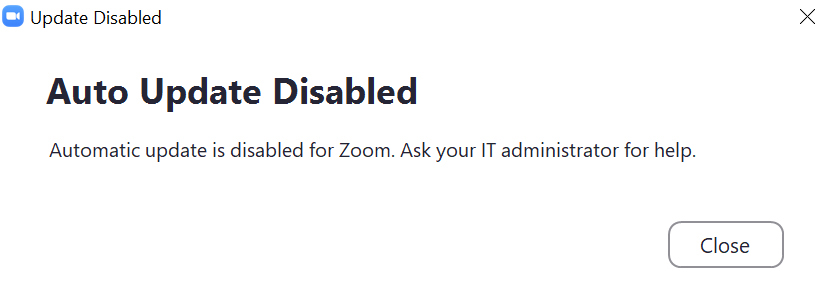
If you see this error message:

Zoom error - auto update disabled

then Zoom was installed through the Addigy Self-Service. Don’t panic! Just follow these steps:

  1. Click on the Addigy icon (in red below) in your task bar and select Install Software:
    :Addigy icon
  2. Under the Install tab (on the left), scroll down until you find Zoom. Click on the Install button.
    Addigy self-service Install tab

Need help? Contact the ITS Information Desk at 540.458.4357 (HELP) or email help@wlu.edu.