Technology updates/upgrades for W&L classrooms and learning spaces

The following rooms have received technology upgrades (and continue to be improved upon):

Classrooms:

  • Leyburn Library M47
  • Moot Courtroom
  • Newcomb Hall  116
  • Newcomb Hall  122

Seminar Rooms:

  • Sydney Lewis Hall 426
  • Sydney Lewis Hall 457
  • Newcomb Hall 120
  • Newcomb Hall 304
  • Newcomb Hall 310
  • Reid Hall 302
  • Wilson Hall 2010

Computer Labs:

  • Lenfest Hall B06 Design Lab

Meeting Spaces:

  • 2 South Main Meeting Room
  • Hillel House 101 Multipurpose Room
  • Leyburn Library M40
  • Leyburn Library M41
  • Leyburn Library M42

Equipment upgrades vary by room, but typically include laser projector and screen or flat panel, AV equipment, Blu-ray player, document camera, lecture capture and/or videoconferencing camera(s), microphone(s), and/or a Mersive Solstice Pod.

Many thanks to Brian Balkey, Andy Briggs, Todd Capito, Todd Goetz, and Alicia Shires for around-the-clock testing and upgrading that you’ve been doing!

Have questions about any technology upgrades? Contact the ITS Information Desk at 540.458.4357 (HELP) or email help@wlu.edu.

Keep Zoom Up to Date!

Zoom regularly provides new versions of their desktop PC and Mac client. These updates add new features, provide bug fixes, and enhance security. As such, it’s important to keep the program up-to-date.

Here’s how to check for updates: 

  1. Sign in to Zoom desktop client.
  2. In the upper right hand corner, click your profile picture, then click on Check for Updates.
  3.  If there is an update available, click on Update, then Install.

Or watch below! (Must log in with W&L credentials.)

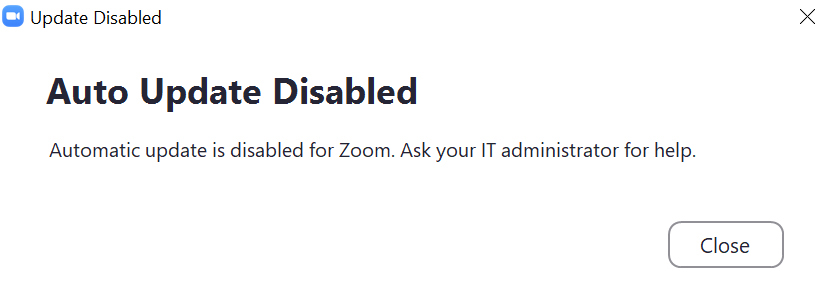
If you see this error message:

Zoom error - auto update disabled

then Zoom was installed through the Addigy Self-Service. Don’t panic! Just follow these steps:

  1. Click on the Addigy icon (in red below) in your task bar and select Install Software:
    :Addigy icon
  2. Under the Install tab (on the left), scroll down until you find Zoom. Click on the Install button.
    Addigy self-service Install tab

Need help? Contact the ITS Information Desk at 540.458.4357 (HELP) or email help@wlu.edu.

Pedagogy, Books & Java’s Winter Term Book Club Selection: “Intentional Tech: Principles to Guide the Use of Educational Technology in College Teaching”

Intentional Tech: Principles to Guide the Use of Educational Technology in College Teaching

With the multitude of educational technology options available, it’s not easy to decide which to use and when.

Derek Bruff, Director of the Vanderbilt University Center for Teaching, argues that it should be our teaching and learning goals that drive our choice of technology, NOT the other way around. In “Intentional Tech”, Bruff provides 7 research-based principles for matching technology to pedagogy and expands on each principle by providing examples of implementation from real faculty.

We’ll meet via Zoom 3 times: Thursday, Jan 21; Tuesday, Feb 16; and Thursday, Mar 11 at 12:30 PM – 1:30 PM EST. In order to best facilitate a lively discussion, we are capping enrollment to 20.

Interested in reading and discussing “Intentional Tech” with us and your colleagues? Sign up at go.wlu.edu/intentionaltech and contact Helen MacDermott at hmacdermott@wlu.edu for a copy of the book.


How can I create an inclusive online learning environment?

Creating an Inclusive Online Learning Environment
Friday, October 2, 2020, 3:00pm ET

10/2/2020 ACUE webinar: Creating an Inclusive Online Learning Environment

Panelists will share practices they have found helpful to effectively set expectations for valuing diverse viewpoints, facilitating respectful conversations, and engaging students in inclusive active learning exercises. The teaching practices discussed in this FREE webinar can be utilized in a variety of disciplines and course sizes to promote equity and inclusion.

Moderated by Charity Peak, Regional Director of Academic Programs at ACUE, this panel will feature a brief keynote from Michael Benitez Jr., Vice President for the Office of Diversity and Inclusion at Metropolitan State University, Denver.

Register NOW!

NEW! Opt in to Display Personal Pronouns in Canvas

All users can choose personal pronouns in their Canvas profiles. Pronouns in Canvas display in locations such as:

  • Comment Fields
  • Discussions
  • Inbox
  • People Page (Course and Groups)
  • User Navigation Menu
  • User Profile Page
  • User Settings Page

The default is “None” and users can opt in to displaying a pronoun in Account > Settings. Available pronouns include:

  • He/Him
  • She/Her
  • They/Them

Here’s how:

  1. While logged in to Canvas, click Account in the global navigation.
  2. Click on the Settings link.
  3. Click the Edit Settings button (on the right side of the page)
  4. Select the desired pronouns from the drop-down menu.
  5. Click the Update Settings button.

[must log in with W&L credentials]

Questions? Contact the ITS Information Desk at 540.458.4357 or email help@wlu.edu.

And if you’re wondering … 

What are Personal Pronouns?

Pronouns are used on a regular basis to refer to people without using their name and imply one’s gender (he, she, they, etc.). Pronouns are one of the many ways we define our identities. 

But why do Personal Pronouns Matter?

You can’t/shouldn’t assume someone’s pronouns by their appearance or name. Referring to someone by the wrong pronoun can be damaging, making the person feel disrespected, invalidated, and/or dysphoric. Correctly using someone’s personal pronoun shows respect for their identities and helps foster an inclusive community. 

Can I share a Box file or folder with someone who doesn’t have W&L credentials?

Aye! You sure can!

But if they have issues opening the file or folder, the problem may be that they must first accept W&L’s Terms of Service before they can access the content you’ve tried to share.  

Have the outside user follow these  steps outlined in these instructions:

https://wlu.box.com/v/nonWLbox

If that doesn’t work, contact the ITS Information Desk at help@wlu.edu or call 540.458.4357.

Zoom-Canvas Integration is now active!

The Canvas-Zoom integration allows instructors to schedule and manage online meetings with their students. 

When you create a Zoom meeting within Canvas, you do not need to send meeting invites to students who are enrolled in the course.

A notification is also sent out to students within Canvas, as well as to their W&L email (assuming they haven’t changed the default notifications). Additionally, an event is created with the Zoom meeting information in the course calendar.

Students only use the Zoom tool in Canvas to join meetings created by Teachers in the course. Students can use Zoom outside of Canvas — by logging into myapps.wlu.edu with their W&L credentials and clicking the Zoom tile OR wlu.zoom.us with their W&L credentials — to create and host their own meetings.

How to Add Zoom to Your Canvas Course

Here’s a 3 minute video that will show you how to enable Zoom in your Canvas course and create a meeting invite for your students:

How to Add Zoom to Your Canvas Course

Open Settings

Open Settings

In Course Navigation, click the Settings link.

Open Navigation

Open Navigation

Click the Navigation tab.

Enable Zoom
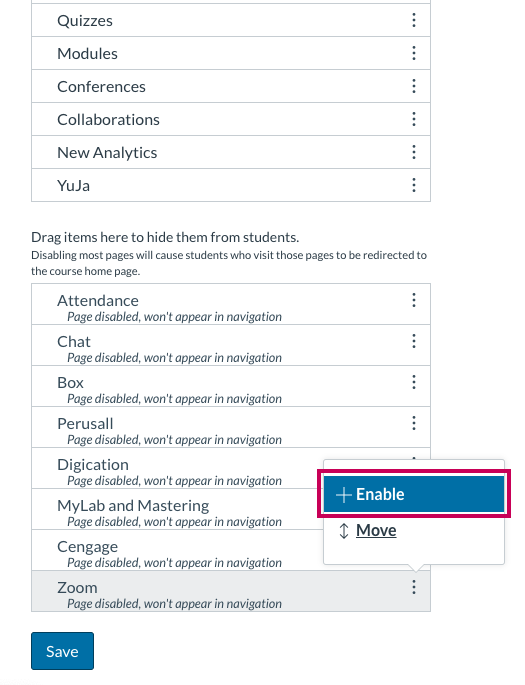
how to enable Zoom in your Canvas course navigation

Click the blue “Save” button. After the browser refreshes, you will see the Zoom link in your course navigation. Click on the Zoom link to schedule meetings for your Canvas course!  (You will first be asked to authorize Zoom before you can use the tool. Once you click the “Authorize” button, you will be able to schedule or start meetings with your students.)

NOTE: Not all Zoom meeting settings, such as pre-assigning breakout rooms or creating polls, are available in the Zoom app in Canvas. Additional meeting settings are available in the W&L Zoom web portal at wlu.zoom.us.

But you can then import that meeting into Canvas, by clicking on the 3 vertical buttons next to “Schedule a New Meeting”:

screenshot of how to import a Zoom meeting into the Canvas-Zoom interface

and entering the Meeting ID. When you import the meeting, it will then be treated as if you’d created that Zoom meeting within Canvas. Students will receive notifications in Canvas and through their W&L email and an event with the Zoom information will be added to the course calendar.

Questions? Need help? Contact the ITS Information Desk at 540.458.4357 or help@wlu.edu.
What’s New in Perusall: You can now add VIDEO! ?? ?? ??

  • Your students can now engage socially around video content in the same way they already can around books, articles, and other documents. Go to Library > Add > Video and select a video from YouTube, Vimeo, Google Drive, Dropbox, or a video file hosted elsewhere to add to your course.
  • You can now allow colleagues to copy your course (your documents, assignments, instructor-initiated threads, and settings) without having to give them instructor access to your course. Go to Settings > Access to obtain your course’s unique “copy code” that another instructor can use to copy from your course. Instructors with your copy code can copy the content in your course but have no access to student data.
  • You can now use more flexible search syntax to search books and other documents, like a web search: search for exact phrases by enclosing them in quotation marks, indicate that a word must appear with a plus sign, or indicate that a word must not appear with a minus sign. Visit the search page on Perusall’s support site for more information.
  • When you use the Canvas integration, Perusall can now mirror your Canvas groups within Perusall, avoiding the need to define groups manually in Perusall. Visit the Canvas setup page on Perusall’s support site for more information.