Save the Date! Perusall Exchange 2021, May 17-28

Perusall - Every student prepared for every class

Perusall is a social reading platform that allows students and instructors to collaboratively markup documents (PDF, EPUB, Word and Excel documents, source code files); video that is hosted on YouTube, Vimeo, Google Drive, or Dropbox; podcasts; and websites.

Students help each other learn by collectively annotating readings in threads, responding to each other’s comments, and interacting with one another.

Only 20-30% of students in the average classroom do assigned reading; in Perusall classes, > 90% consistently do the reading. Peer-reviewed, published, and patented research shows that Perusall works.

Incredible stuff, right? And there’s even MORE to be excited about!

From May 17-28, Perusall will host an asynchronous social learning conference with more than 50 sessions across a diverse array of disciplines that highlight innovative pedagogical approaches by instructors using the platform.

You will be able to pick and choose the sessions that pique your interest — whenever it suits your schedule — and engage with the presenters and other participants asynchronously using the Perusall platform.

At the end of the conference, presenters and participants will gather in a live session to continue the discussion.

Among the sessions currently scheduled are:

  • Perusall Pedagogy for Inclusivity and Active Learning
  • From Novice to Expert: Developing Students’ Metacognitive Reading Practices with Perusall
  • Just in Time Chemistry in Perusall
  • Small Teaching: Building Community in the Online Classroom
  • Analyzing the Breaks: Teaching Hip Hop History with Perusall

Sign up now!

We’ll be there. Will you?

An aerial view to really put things in perspective!

In March, the IQ Center took to the skies to gather data for the Geology department.

Knowing that some students might not able to attend lab in person, Professor of Geology Chris Connors got some help from the IQ Center to create a photogrammetry model of the rocky outcroppings he was interested in, so students could view the formations from anywhere.

Photogrammetry can be a tricky process. Essentially, the goal is to visually identify common points between multiple photos, and using sophisticated software, stitch the photos together into a 3D model that lets us zoom, rotate, and examine areas of interest.

There’s a lot to consider when shooting for a photogrammetry project.

For one, the shoots can take several hours – enough time for the sun to travel a considerable distance in the sky, which changes light levels, shadow positions, and reflections. This means a cloudy day is ideal, but it can be difficult to plan trips around weather.

Another consideration is how the pictures should be taken. Due to the scale and location of the subject, this project necessitated using the IQ Center’s drone.

This means an extra set of challenges: safe takeoff, flight, and landing, watching battery life, and the multitasking involved with both piloting and taking pictures is a lot to focus on.

The tradeoff is that previously inaccessible shots are now within reach!

View the final photogrammetry model.

Get a behind-the-scenes look at how the IQ Center operates their drone on their Instagram: @wluiqcenter 


Want to incorporate photogrammetry into your course? Contact Dave Pfaff at 540.458.8044, email dpfaff [at] wlu [dot] edu or stop by the IQ Center!

Time for Spring Cleaning! How to Download Videos from YuJa

The past year has seen an unprecedented growth in the use of YuJa. ITS is very pleased at the role this service has played in facilitating teaching and learning on our campus despite the impact of the global pandemic. That said, we are rapidly approaching our allocated storage maximum and need to recover space for the continued functionality of the service.  

You may have already been contacted by ITS asking you to allow us to remove all recordings made or uploaded prior to the start of the Undergraduate Winter 2021/Law Spring 2021 term.

Even if you haven’t, it would be prudent to review your videos and download any that don’t need to remain in YuJa.

Here’s how!

To download multiple recordings:

  1. Log into YuJa at https://yuja.wlu.edu with your W&L credentials and click on Manage Media at the top of the screen:
    red circle around "Manage Media" at the top of the screen when logged into YuJa
  2. Select multiple video files by using shift-click, ctrl-click, or command-click. Choose ctrl-click to add media one selection at a time, or use shift-click to select an entire section of content. You may also navigate to  and choose Select All to choose all content within the folder.multiple videos selected in YuJa using control+click
  3. Click More Actions at the top of the screen.
    Select the desired bulk option. Options include: Bulk Delete, Bulk Move, Bulk Download, Bulk Publish, Bulk Unpublish, Bulk Share, Bulk Owner and Bulk Tag.
    Each option works in the same way as managing a single file; however, actions are applied to all selected files.

    red rectangle around "More Actions" and "Bulk Download" in the menu that appears when you click on "More Actions" at the top of the screen in YuJa


To download a single recording:

  • Log into YuJa at https://yuja.wlu.edu with your W&L credentials and click on Manage Media at the top of the screen:
    red circle around "Manage Media" at the top of the screen when logged into YuJa
  • Mouse over the desired video and click on More …
    red rectangle around "More ..." in menu that appears when you hover over a video in YuJa
  • Choose Downloads from the left-side menu.red rectangle around "Download" in the menu that appears after you click on "More..." in YuJa

    You have a number of choices for your download, depending upon the type of media:

    • Download Media: download an mp4 copy of your video file.
    • Download Original: download the original manually uploaded video file.
    • Download Audio-Only Content: download an mp3 audio file of the video.
    • Download HLS: download a m3u8 download.
    • Download SCORM 1.2: download a SCORM file.

  • Need assistance with YuJa? Contact the ITS Information Desk at 540.458.4357 (HELP), email help@wlu.edu, or stop by Leyburn Library!

    Shiny New Canvas Features: Webcam Assignment Submissions and Assignment Reassignment!

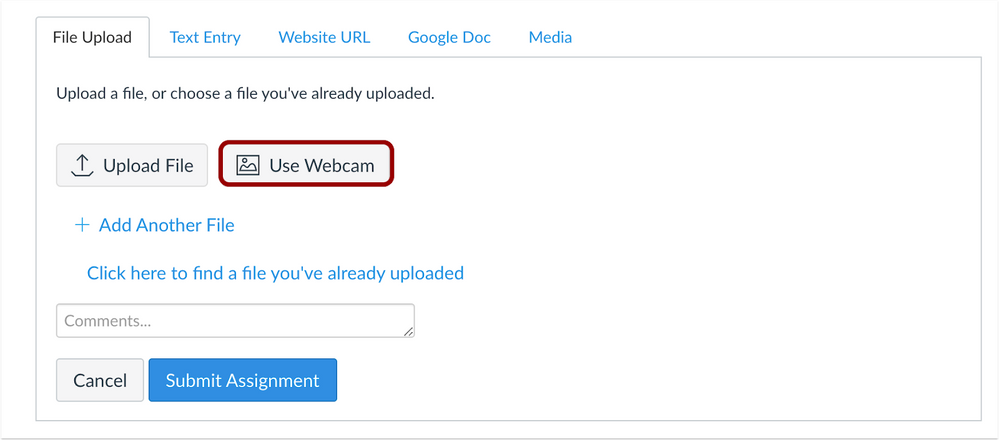
    NEW! In File Upload assignments, students can use their webcam to submit to an assignment. This change allows students to use their webcam to submit a file upload assignment from the browser and aligns behavior with the Canvas Student app.

    How This Feature Works for Students

    For File Upload assignments, students have the option to use their webcam for file uploads. The first time they use the feature, they will need to give permission to Canvas to access their computer webcam. Like all other graded submission types, images submitted via the webcam functionality do not count against course or user quota.

    erinhallmark_0-1614036096378.png

    How This Feature Works for Instructors

    Instructors can view uploaded images submitted via a student’s webcam as they see other file uploads in SpeedGrader and anywhere that submissions are available. 


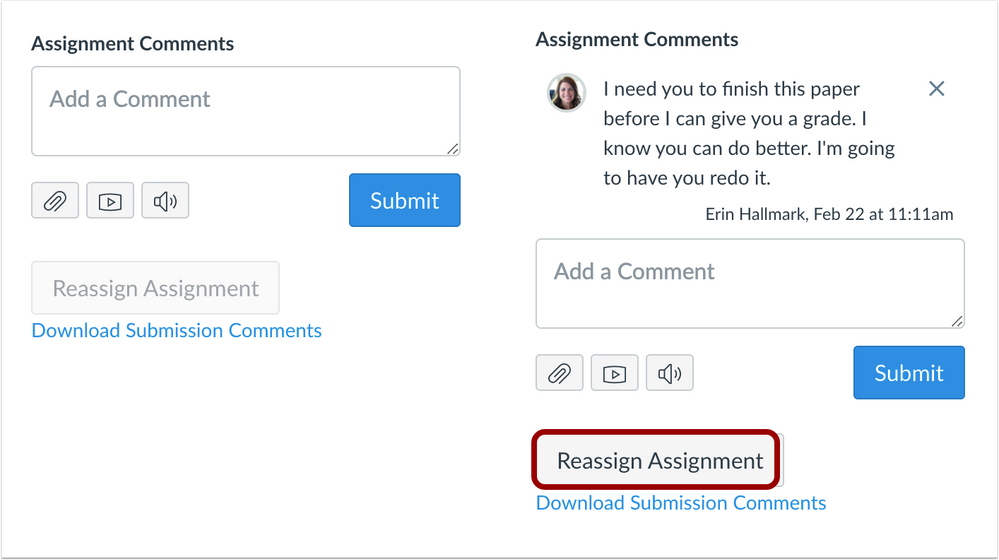
    NEW! In SpeedGrader, instructors can leave feedback comments and reassign the assignment to a student. This feature allows an instructor to ask a student to resubmit an assignment as part of the instructor’s regular grading workflow.

    How This Feature Works for Instructors

    For online assignments with a due date, instructors can view a Reassign button in SpeedGrader. If they require a student to redo an assignment, they can reassign the assignment directly to the student from within their grading workflow in SpeedGrader.

    The instructor must first provide feedback regarding the assignment, which will enable the button. The reassignment does not change the original due date for the student.

    Notes

    • The Reassign Assignment button is not available for External Tools (LTI), on paper, and no submission assignments.
    • The Reassign Assignment button is only available for assignments with due dates.
    • If an instructor returns to SpeedGrader after navigating away from the page, the Reassign Assignment button shows that the assignment has been reassigned.
    • If the assignment’s settings do not allow students to make an additional attempt, the Reassign Assignment shows that the assignment is not able to be reassigned.

    erinhallmark_1-1614036208084.png

    How This Feature Works for Students

    When an assignment is reassigned, students see the assignment in their List View Dashboard with the instructor’s feedback.

    Students can resubmit the assignment and submit for additional feedback from their instructor.

    Wall Street Journal: How to Teach Professors Humility? Hand Them a Rubik’s Cube

    Sandy Roberson sent a note to professors at Furman University and Denison University in mid-December with a simple message.
     
    “Failure is not an option,” she wrote on a discussion board frequented by a few dozen other academics.
     
    Three weeks later, the veteran Furman accounting professor reconsidered and abandoned her assignment. She had been bested by a Rubik’s cube.
     
    Ms. Roberson was among roughly 30 faculty members from the two schools who had signed on to a winter-break challenge: learn to solve the cube-shaped puzzle in five minutes or less, within six weeks. And, in the process, learn to become better instructors by being reminded what it’s like to be a novice.
     
    “After you do something for a very long time, it just becomes second nature,” said Lew Ludwig. The math professor at Denison, in Granville, Ohio, runs the school’s Center for Learning and Teaching and coordinated the challenge with a counterpart at Furman, in Greenville, S.C. The schools are members of an organization for faculty development at small colleges. “The brain does not like new stuff,” he said. “Learning is hard.”
     
    Amen to that!  Read the rest of this article by Melissa Korn.
     
    Thanks to Senior Academic Technologist Brandon Bucy for sharing this great article AND these thoughts:
     
    “I’ve always thought the expert-novice divide is one of the hardest things to get around when teaching.  We honestly forget how much we struggled in the past with a concept before mastering it, and can’t relate to our struggling students or really help them in a meaningful way except to encourage them to continue the struggle.  I think in a way it represents the internally chaotic nature of learning, that “learning” itself is somehow non-rememberable once you get through it.”
     

    Digital Exit Tickets

    What’s an Exit Ticket?

    pink exit ticketAn exit ticket is simply a question posed to all students at the end of class/the week/unit of study.

    Student responses provide you with immediate insight that you can use to assess students’ understanding, monitor their questions, or gather feedback on your teaching and, if necessary, adjust or adapt your instructional strategies.

    In  Art and Science of Teaching/The Many Uses of Exit Slips, Robert J. Marzano suggests 4 different types of prompts for exit tickets:
     

    Provide formative assessment data:

      • What was the big idea of today’s lesson?
      • What was the most important thing you learned in today’s class? Why is it important?
      • What is the most difficult question you have about what you learned today?
      • How could the knowledge you learned today be used in the real world?
      • What’s one thing you want to practice again?
      • What are you struggling to understand at the moment?

    Stimulate student reflection/analysis:

      • What could you have done today to help yourself learn better?
      • What part of the lesson surprised you?
      • Which part of today’s lesson was most interesting?
      • I used to think but now I know…
      • What is something you weren’t sure about at the start of class but understand now?
      • Imagine a friend missed class today. How would you explain what we covered in 25 words or less?
      • If you were creating a quiz about today’s class, what are two questions you’d include?
      • How can you apply something you learned today to another class or subject?
      • How can you apply what you learned today to your own life?

    Focus on instructional strategies:

      • How did the group work today help you understand the content? What are some things you’d like to see during group work in the future?
      • We did a concept map activity in class today. Was this a useful learning activity for you? Why or why not?
      • Did you value the group activity today? Do you think the activity or task would have been better done alone?
      • Which of the readings was most helpful in preparing you for class? Why?

    Offer open communications:

      • What could I do differently to help you understand better
      • What is one thing you’d like me to explain more clearly?
      • What’s one change we could make to the way we learn in this class?
      • What’s one thing you’d like me to START doing in class?
      • What’s one thing you’d like me to STOP doing in class?
      • What’s one thing you’d like me to CONTINUE doing in class?

    Ideally, exit tickets are no more than one or two short, open-ended (when possible) questions that take students less than 5 minutes to complete. 

    Tools you can use to implement exit tickets

    Microsoft Forms

     
    Microsoft Forms example of an exit ticket form
    Click this image to view this one question Exit Ticket form

    Poll Everywhere

    Poll Everywhere one question exit ticket survey

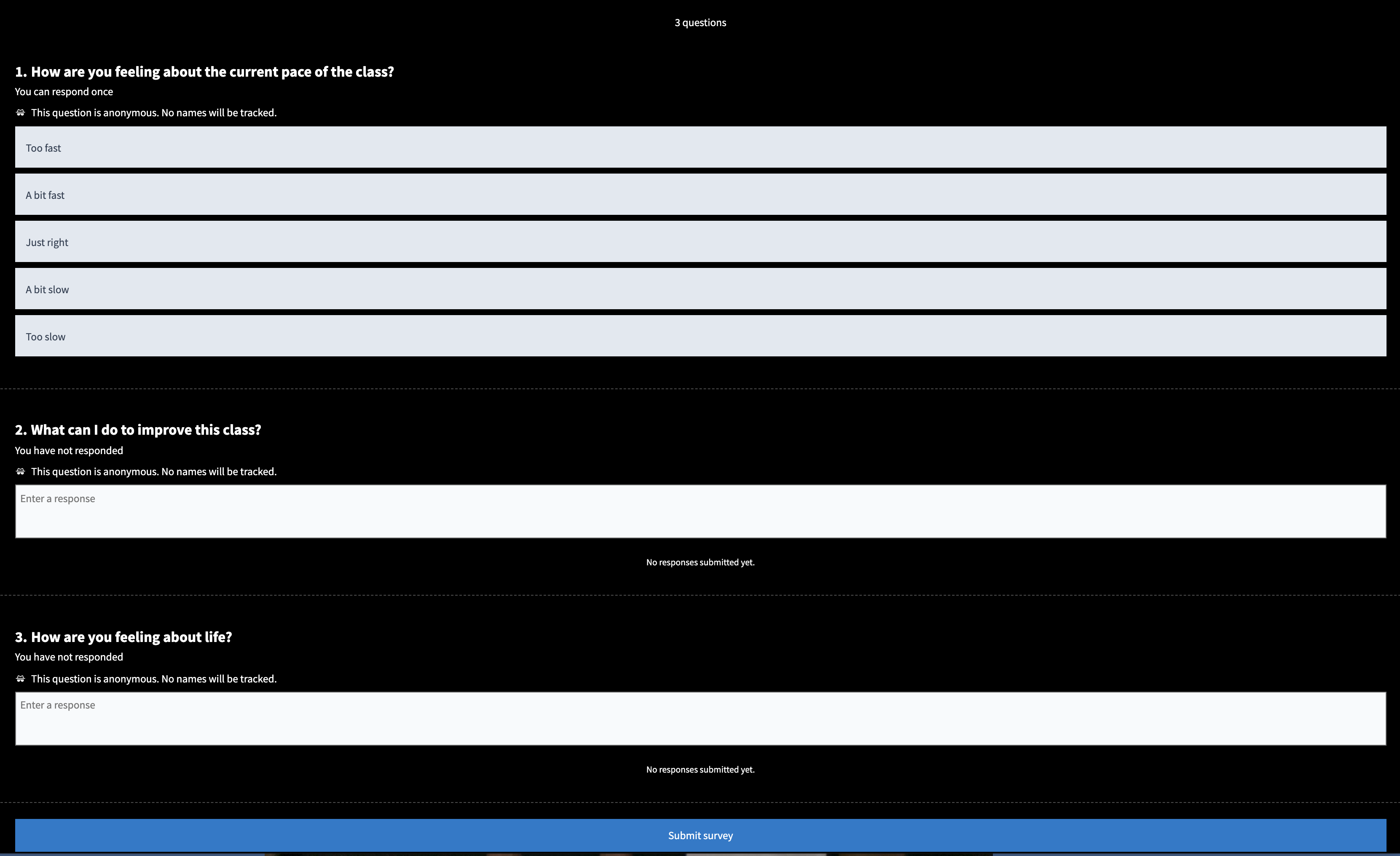
    3 question Exit Ticket survey in Poll Everywhere

    Need a Poll Everywhere account? Email the ITS Information Desk at help@wlu.edu or call 540.458.4357 (HELP).

    Polling for Zoom meetings

    1. Enable Polls in Zoom
    2. Create a Poll
    3. Launch a Poll

    Anonymous Ungraded Survey in Canvas

    Exit Ticket survey in Canvas


    Flipgrid

    My Ah-ha Moment! Flipgrid exit ticket
    Click to view this Flipgrid exit ticket!

    Do you use exit tickets in your class? Have they been helpful? If you have any thoughts to share, we’d love to hear ’em!

    Enable Real-Time Transcriptioning in Your Zoom Meetings!

    Did you know that you can add closed captioning or transcriptioning to a Zoom meeting?

    Zoom provides free, AI-powered live transcription. Transcription is the process in which speech or audio is converted into a written, plain text document. 

    Live transcription only supports English and you must you speak clearly for best results. Unfortunately, live transcription is NOT supported in breakout rooms.

    NOTE: The accuracy of Zoom’s live transcription feature depends on many variables, such as, but not limited to:

    • Background noise
    • Volume and clarity of the speaker’s voice
    • Speaker’s proficiency with the English language
    • Lexicons and dialects specific to a geography or community

    OK, here’s how!

    Before your Zoom meeting:

    1. Sign in to the Zoom web portal with your W&L credentials.
    2. In the navigation panel, click Settings.
    3. Click the Meeting tab.
    4. Scroll down to Closed captioning.
    5. Click the toggle to enable it. If a verification dialog displays, click Turn On to verify the change.
      Enabling Closed Caption in Zoom settings
    6. With Closed Captioning enabled, the option to enable live transcription should appear directly below as Enable live transcription service to show transcript on the side panel in-meeting. Check this to enable live transcription.
    7. Click the toggle for Save Captions if you want to enable the ability for meeting participants to save closed captions or transcripts.

    During your Zoom meeting:

    1. In a Zoom meeting you are hosting, click the Live Transcript button: Zoom meeting tools with Live Transcript button highlighted
    2. Click on Enable Auto-Transcription: options for Live Transcript in Zoom
      You also have the option to assign a participant to type, manually type closed captions yourself, or copy the URL that you’d provide to a third-party closed captioning service.

    As a Zoom Meeting Participant

    1. When enabled by the host, you will see a notification above Live Transcript in the meeting controls, informing you that the service is available.
    2. Click Live Transcript, and then select Show Subtitle. The provided subtitles can be clicked and dragged to move their position in the meeting window.

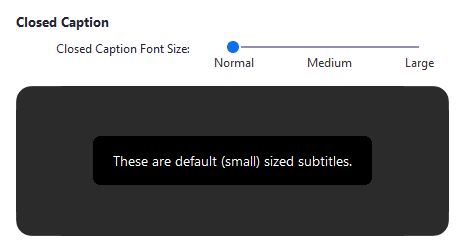
    To adjust the caption size:

    1. Click the up ^ next to Start Video / Stop Video
    2. Click Video Settings then Accessibility.
    3. Move the slider to adjust the caption size. 

    See Zoom’s guide to closed captioning and live transcription for more information!

    Need help? Have questions? Contact the ITS Information Desk at 540.458.4357 (HELP) or email help@wlu.edu

    P.S. You can also enable live captions in a Teams meeting, too!

    NYTimes: I Actually Like Teaching on Zoom

    Viet Thanh Nguyen is a contributing opinion writer at The New York Times and the author of “Nothing Ever Dies: Vietnam and the Memory of War.”

    Nguyen is the Aerol Arnold Chair of English and Professor of English and American Studies and Ethnicity at the University of Southern California. @viet_t_nguyen


    Here’s an unpopular opinion: I like teaching on Zoom.

    Many accounts of teaching on Zoom or other online platforms recount its horrors. And much is horrible: teachers and students without stable internet connections or adequate technology; too much intimacy, with overcrowded homes that teachers or students might find embarrassing for others to see; and not enough intimacy, with the human connection attenuated online.

    As a college professor, I, too, miss some of the elements of teaching in a classroom, including the intellectual energy that can flow around a seminar table, the performative aspect of lecturing to a large audience and the little chats that take place by happenstance during breaks or after class with students.

    What I don’t miss is my 10-mile drive to campus and back. I don’t miss pondering my wardrobe choices in the morning. The relative informality of the Zoom era means that I would feel overdressed if I wore a blazer to teach. And if I don’t wear a blazer, I don’t have to wear slacks. Or put on shoes. Why would I wear shoes inside my house, anyway?

    Continue reading “NYTimes: I Actually Like Teaching on Zoom”

    Inspiration from the IQ Center

    Just because the IQ Center is located in the Science Building doesn’t mean it’s only mean for STEM projects.

    One tool in particular has found remarkably broad use across many disciplines – the laser cutter.

    The following recent projects highlight its uses in the area of print making.

    sample woodblock with koi and text created in the IQ Center In traditional woodblock printing, artists create designs by removing wood from a block of wood with metal carving tools. The wood is then coated with ink and used to make a print. The laser cutter in the IQ Center can be used in place of the carving tools to remove wood more quickly and more precisely than traditional methods.

    sample made from Leigh Ann Beavers’ printmaking class

    This semester in Leigh Ann Beavers’ printmaking class, the IQ Center is collaborating on such a project. Students will create designs either digitally or by scanning paper drawings. The edited graphics will be laser engraved in the IQ Center and printed in the print studio using the same techniques as hand carved wood blocks. This process allows students to create a greater number of woodblocks with more detail than would normally be possible in a semester.

    A similar technique is used to create rubber stamps which can be used for a number of practical and class-related projects.

    white Japanese hachimaki with rubber stamped text in blue

    Recently, Janet Ikeda, associate professor of Japanese, inquired about printing on fabric. She was interested in creating a custom Japanese headband called a hachimaki as part of a Lunar New Year video performance. Using the laser cutter, we created a rubber stamp that was able to print directly on fabric and the result looked fabulous.

    Dancers wearing the hachimaki (custom headband) for a Lunar New Year video performance.

    Regardless of your discipline, please contact Dave Pfaff with any creative technology needs.