Digital Exit Tickets

What’s an Exit Ticket?

pink exit ticketAn exit ticket is simply a question posed to all students at the end of class/the week/unit of study.

Student responses provide you with immediate insight that you can use to assess students’ understanding, monitor their questions, or gather feedback on your teaching and, if necessary, adjust or adapt your instructional strategies.

In  Art and Science of Teaching/The Many Uses of Exit Slips, Robert J. Marzano suggests 4 different types of prompts for exit tickets:
 

Provide formative assessment data:

    • What was the big idea of today’s lesson?
    • What was the most important thing you learned in today’s class? Why is it important?
    • What is the most difficult question you have about what you learned today?
    • How could the knowledge you learned today be used in the real world?
    • What’s one thing you want to practice again?
    • What are you struggling to understand at the moment?

Stimulate student reflection/analysis:

    • What could you have done today to help yourself learn better?
    • What part of the lesson surprised you?
    • Which part of today’s lesson was most interesting?
    • I used to think but now I know…
    • What is something you weren’t sure about at the start of class but understand now?
    • Imagine a friend missed class today. How would you explain what we covered in 25 words or less?
    • If you were creating a quiz about today’s class, what are two questions you’d include?
    • How can you apply something you learned today to another class or subject?
    • How can you apply what you learned today to your own life?

Focus on instructional strategies:

    • How did the group work today help you understand the content? What are some things you’d like to see during group work in the future?
    • We did a concept map activity in class today. Was this a useful learning activity for you? Why or why not?
    • Did you value the group activity today? Do you think the activity or task would have been better done alone?
    • Which of the readings was most helpful in preparing you for class? Why?

Offer open communications:

    • What could I do differently to help you understand better
    • What is one thing you’d like me to explain more clearly?
    • What’s one change we could make to the way we learn in this class?
    • What’s one thing you’d like me to START doing in class?
    • What’s one thing you’d like me to STOP doing in class?
    • What’s one thing you’d like me to CONTINUE doing in class?

Ideally, exit tickets are no more than one or two short, open-ended (when possible) questions that take students less than 5 minutes to complete. 

Tools you can use to implement exit tickets

Microsoft Forms

 
Microsoft Forms example of an exit ticket form
Click this image to view this one question Exit Ticket form

Poll Everywhere

Poll Everywhere one question exit ticket survey

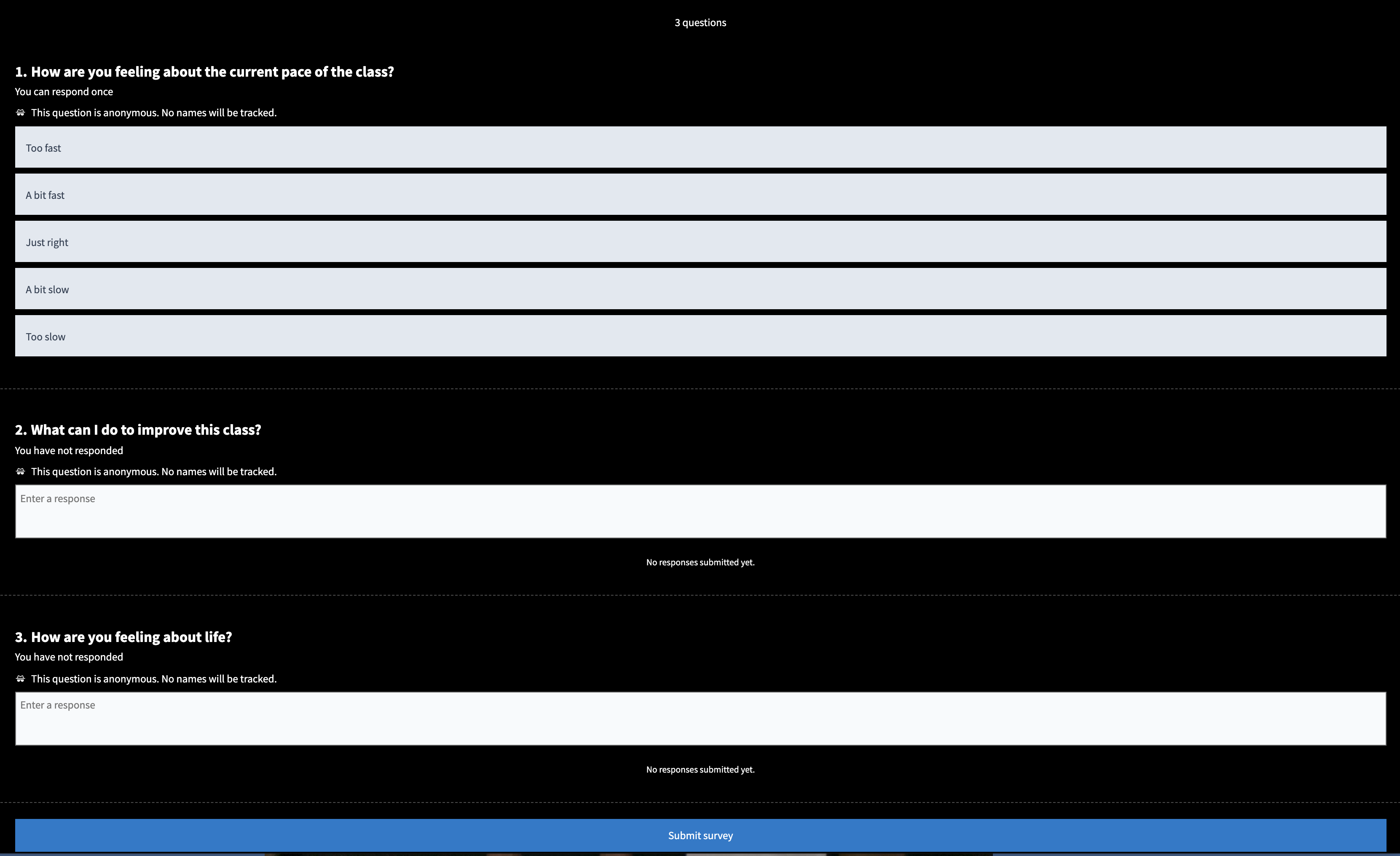
3 question Exit Ticket survey in Poll Everywhere

Need a Poll Everywhere account? Email the ITS Information Desk at help@wlu.edu or call 540.458.4357 (HELP).

Polling for Zoom meetings

  1. Enable Polls in Zoom
  2. Create a Poll
  3. Launch a Poll

Anonymous Ungraded Survey in Canvas

Exit Ticket survey in Canvas


Flipgrid

My Ah-ha Moment! Flipgrid exit ticket
Click to view this Flipgrid exit ticket!

Do you use exit tickets in your class? Have they been helpful? If you have any thoughts to share, we’d love to hear ’em!

How to Record a Presentation with Multiple Speakers in Zoom

Need to record a group presentation? Here are some tips to create a polished recording!

Working assumption:

  • The meeting host should think of themselves as the producer of the recording. 
  • There is one PowerPoint (.ppt file) that will shared by the meeting host.

Before you begin …

  • IMPORTANT! The meeting host and all speakers should update their Zoom client to the latest version.
  • Everyone should plan to use a headset or clip-on microphone, if possible.
    • Need to borrow a headset or clip-on microphone? Contact the ITS Information Desk at help@wlu.edu, 540.458.4357 (HELP), or stop by Leyburn Library.
    • Why? The kind of microphone you use will affect the other participants’ ability to hear you. 
  • The meeting host should check their Zoom Recording settings:
    • Enable “Cloud Recording”.
    • Enable “Record active speaker with shared screen”.
    • Enable “Record thumbnails when sharing”.
    • Enable “Optimize the recording for 3rd party video editor”.
    • Click the Save button.

Five minutes before the meeting begins ….

  • Restart your computer/laptop and close any applications you don’t need to use for the meeting itself.
    • Why? Other applications have a way of intruding and asking for attention from your CPU and broadband connection. 
  • Set up your head set or clip-on microphone.
    • Headset microphones should sit an inch or so away from your face and a few centimeters away from the corner of your lips. Clip-on microphones should sit at the upper side of the chest.

OK, it’s time!

  • The host signs into Zoom with their W&L credentials (either at wlu.zoom.us or within the Zoom client) and starts the meeting. 
  • Do an audio/video check for each speaker, i.e. make sure everyone can start/stop their camera and mute/unmute their microphone.
  • All speakers start their cameras.
  • The meeting host shares screen.
    • Share only the PowerPoint application, not the entire desktop.
  • The meeting host spotlights speaker #1.
  • All other speakers should stop their video and mute themselves.
  • The meeting host turns on “Hide non-video participants“.
  • The meeting host starts a cloud recording.
  • When the speaker #1 is finished, the speaker #2 should start video and unmute audio. Then speaker #1 stops video and mutes audio while the meeting host spotlights speaker #2.
  • Repeat for all speakers.
  • Stop the cloud recording when finished!

Don’t panic if there’s a goof or mistake! After the recording has processed so you can download it, the mp4 file can be edited in Camtasia (Windows or Mac) or QuickTime (Mac). Contact the ITS Information Desk you need access to either of those applications!

How to copy videos in one YuJa course channel to another YuJa course channel

Do you have videos already published to a Fall term YuJa course channel in Canvas that you want to make available to a Winter term Canvas course?

Just follow these steps!

  1. First, enable YuJa in your Winter term Canvas course.
      • Log in to Canvas by going to myapps.wlu.edu, enter your W&L credentials, and click on the Canvas tile.
      • Go to the desired course and click on the Settings link in the course navigation.
      • Click on the Navigation tab.
      • Drag and drop YuJa from the bottom group of tools to the top list of tools.
      • Click the “Save” button.


  2. Next, create a new YuJa course channel.
      • Click on the YuJa link in the course navigation. 


  3. Last, publish videos from an existing YuJa course channel to the newly created YuJa course channel.
    • Click on My Media (on the left side of the page).
    • Hover over any video you want to share.
    • Click on Publish.
    • Click on the newly created course channel (and any other course channels, if desired).
    • Click the “Select” button.
    • Pat yourself on the back.

Tah-dah!

See https://support.yuja.com/hc/en-us/articles/360049114773-Using-Multi-channel-Publishing for more information.

Have questions? Need further assistance? Contact the ITS Information Desk at 540.458.4357 (HELP) or email help@wlu.edu.


The “Read Aloud” feature in Word: a game changer for proofreading!

Did you know that Microsoft Word can read aloud the text of documents to you? Aye! This can be super helpful if you’re tired of reading the screen or are proofreading from another document.

Using a desktop version of Word, position your cursor where you want the reading aloud to begin and click on Review > Read Aloud button. Watch below!

Click the Read Aloud button a second time and it stops. Click the button again to continue from that point on.

Pretty sweet, right?

Can I share a Box file or folder with someone who doesn’t have W&L credentials?

Aye! You sure can!

But if they have issues opening the file or folder, the problem may be that they must first accept W&L’s Terms of Service before they can access the content you’ve tried to share.  

Have the outside user follow these  steps outlined in these instructions:

https://wlu.box.com/v/nonWLbox

If that doesn’t work, contact the ITS Information Desk at help@wlu.edu or call 540.458.4357.

Excellent advice and practical tips for moving to virtual recorded learning!

Gearing up for asynchronous lecturing and thinking about student engagement in online and/or hybrid courses? Then set aside a few minutes to read this terrific thread with practical tips and tricks on lecture capture. Many thanks to @vijisathy for compiling and sharing your thoughts about creating a “high-structure active learning classroom”.

FACULTY FOCUS: “A Reflection on the Sudden Transition: Ideas to Make Your Synchronous Online Classes More Fun”

Fun Activities for Online Classes

  1. We play a “This/That” game. It is really silly, but both the students and I have fun with it, or at least I do. For example, I start the game with the first student who volunteers. “Do you like Semantics/Pragmatics? Why?” “Would you like to be the Broca’s area/Wernicke’s area? Why?” “Would you like to have a conversation with a toddler/a preschooler? How?”  Then each student calls out a peer’s name and asks them a similar question. We make sure that everyone gets a turn.

  2. We play “Two truths and a lie.” For example, I start with the first student. “Intentional communication emerges around 8-9 months. Joint attention emerges around 6 – 10 months of age. Inflectional morphemes are mastered by age 3.” The student has to select which one of these statements is a lie. And then, I give the students a checklist that they can use to ask the next person another “Two truths and a lie” question. 

  3. Another game we play is called “Circle of questions.” One student starts with a question. For example, “What is decontextualized language?” The next student then responds and asks a question to the person that she / he tags. The next question needs to be in some way related to the first question. For example, it can be related to decontextualized language or language development in preschoolers. All students get a chance to ask and respond.

  4. We play a “Tell your grandma” / “Teach your grandpa” game. I post questions ahead of time. If there are 10 students, I post 10 questions. Each student picks a question and spends about two minutes preparing an answer. I then pretend to be the grandma or grandpa, and I ask a question pretending to not know anything about it. For example, I say, “What exactly is phonological awareness?” And then I annoy them by saying, “Really? I can’t understand that. Could you tell me what a phoneme is first? Why would a child need phonological awareness? What does it have to do with reading?” etc. So, I spend about five minutes with each student doing this. 

  5. Another game is called “Emoji Slides.” This is a great game to play before exams. I have a set of pre-made slides. Each slide displays a concept or a word or a question. I share my screen and present one slide at a time. Students have to respond by reacting to the word/concept/question on the slide with an emoji – ? Happy , ? Sad, or ? Neutral. If I see a ? happy emoji from all students, I move on to presenting the next slide. If a few students respond with a sad or neutral emoji, I stop and explain the concept or give examples, and then ask them to react with an emoji again. If the emoji is now happy, we move ahead. Students can also create their own slides, share their screen, tag a person, and ask them to react.

  6. Another game we play is “Who am I?” For example, I say, “I am a part of the cochlea that separates the scala media and the scala tympani. Who am I?” “I acquired two languages at the same time before the age of 3.Who am I?”

  7. We do online role plays. For example, one student volunteers, and we practice asking questions as part of a case history while I pretend to be the caregiver and the student takes the role of a speech-language pathologist. We then reverse roles. We also role play to practice counseling. I provide a list of case-based scenarios that all students can look at. I read each scenario aloud, and students take turns to counsel me while I play the role of the client.

  8. For review of concepts, we use collaborative worksheets. We use this activity every time we meet online as students like the structure and repetition of this activity. I post a worksheet with several questions (multiple choice, fill in the blanks, true/false, explain a term, give an example, compare two concepts, etc.). Students can then open this worksheet on their Microsoft Teams browser and start typing answers to these questions. Students can see each other’s responses, and I can see both their names and their responses. They get immediate synchronous feedback. I respond next to their responses with a happy emoji if their answer is correct. If their answers seem vague or incorrect, I edit it online while everyone else can see my edits. You can do this activity with Google Docs if you are not using Microsoft Teams.

  9. Finally, we use short 15-minute quizzes during the synchronous class time. I create quizzes using Microsoft Forms because it is compatible with Teams. These quizzes are not part of the course grade; they are merely used for practice. Students can complete the quiz on their individual devices during class time, and I can review their responses, where they can get immediate feedback. You can create these on your course LMS, use Google Forms, or simply read a question out loud and have students respond in the chat screen or shout out the answers.

Read the entire article by Siva priya Santhanam, Ph.D., CCC-SLP,  assistant professor at the Dept. of Speech, Language, Hearing Sciences, Metropolitan State University of Denver, Colorado at https://www.facultyfocus.com/articles/online-education/ideas-to-make-your-synchronous-online-classes-more-fun/.

When’s the Last Time You Cleaned Your Keyboard and Mouse? ?

“Yay, it’s flu season!”

—No one, ever

Sanitize your keyboard and evict that nasty grime and bacteria – stat!

https://www.totaljobs.com/insidejob/workplace-hygiene-6-office-germ-hotspots/
Ewwwww, right???

Using disinfectant wipes to clean your keyboard and mouse — along with other measures like keeping your distance from sick people and thoroughly washing your hands before eating and after using the toilet — can help to prevent the spread of colds and flu.

Protect yourself and do your part to help prevent the spread of any viruses!

Keep an eye out for packs of disinfectant wipes in classrooms. Over Feb Break, we took the liberty of wiping down keyboards and mice and are making wipes available so you can continue to sanitize these devices before you use them.

6 engagement strategies for creating temperament-inclusive classrooms

How to Care for Extroverts, from The Introvert’s Dilemma blogIn every classroom, students offer a mix of temperaments: extroverts, introverts, and ambiverts. Some crave sensory stimulation and are quick to speak up, while others are highly sensitive to noise or visual distractions and prefer conversing one-on-one in a quiet, calm environment. 

In “Quiet: The Power of Introverts in a World That Can’t Stop Talking”, New York Times bestseller author Susan Cain outlines a value system of the “extrovert ideal,” in which individuals that work well in teams, socialize in groups, and prefer action to contemplation are the ideal student.

Embracing the extrovert ideal is a grave mistake, says Cain. Many of the world’s best ideas are fostered by introverts, who fuel their learning with observation and engaging in deliberate practice alone. 

Poll Everywhere recently suggested 6 classroom strategies to reach introverted students:

  • Institute “Think Time”
  • Write Down Responses First
  • Pairs, Small Groups, Singles
  • Offer Different Paths to Complete an Assignment
  • Be Available
  • Perform Anonymous Polling

How to Care for Introverts, from The Introvert’s Dilemma blogIt’s definitely worth a read!

Need a Poll Everywhere account?

No problem! Contact the ITS Information Desk at help@wlu.edu, call 540-458-4357 (HELP), or stop by the Main Level of Leyburn Library!

Why You Should Always Keep Your Browser Up To Date!

firefox, chrome, opera, safari, IE logos -- for the best experience, keep your browser up to date!

*** We recommend having both Firefox AND Chrome! ***

I know, I know, ensuring that you have the latest version of a web browser is about as exciting as watching paint dry and as important of a task as ironing underwear, BUT updates will make a considerable impact upon your browser experience. How?

Most importantly, outdated versions of web browsers make you vulnerable to serious security flaws that can allow malicious websites to potentially read your files, steal passwords, and infect your computer with viruses, trojans, spyware, adware, or other sorts of malware.  Many browser updates are issued to specifically to combat these critical problems.

Not updating your browser regularly can also lead to technical difficulties or odd behavior with web-based tools like Canvas, Digication, and more.

Every newer generation of a browser improves the speed at which you can explore and use the Internet: web sites can load faster, making the tasks you carry out on those web sites quicker, too.

Another reason to keep your browser up-to-date is to have the best browsing experience otherwise. Web sites built using new technology for their display and features will look as they should and work better.

So, please, please, please, take the time to update your web browsers. If you need assistance, you can always call the ITS Information Desk at 540.458.4357 (HELP), email help@wlu.edu, or stop by Leyburn Library!

NOTE: While making your browser more secure helps reduce the risk that a hacker will use it to compromise your computer, it is still important to employ safe computing practices!