Wall Street Journal: How to Teach Professors Humility? Hand Them a Rubik’s Cube

Sandy Roberson sent a note to professors at Furman University and Denison University in mid-December with a simple message.
 
“Failure is not an option,” she wrote on a discussion board frequented by a few dozen other academics.
 
Three weeks later, the veteran Furman accounting professor reconsidered and abandoned her assignment. She had been bested by a Rubik’s cube.
 
Ms. Roberson was among roughly 30 faculty members from the two schools who had signed on to a winter-break challenge: learn to solve the cube-shaped puzzle in five minutes or less, within six weeks. And, in the process, learn to become better instructors by being reminded what it’s like to be a novice.
 
“After you do something for a very long time, it just becomes second nature,” said Lew Ludwig. The math professor at Denison, in Granville, Ohio, runs the school’s Center for Learning and Teaching and coordinated the challenge with a counterpart at Furman, in Greenville, S.C. The schools are members of an organization for faculty development at small colleges. “The brain does not like new stuff,” he said. “Learning is hard.”
 
Amen to that!  Read the rest of this article by Melissa Korn.
 
Thanks to Senior Academic Technologist Brandon Bucy for sharing this great article AND these thoughts:
 
“I’ve always thought the expert-novice divide is one of the hardest things to get around when teaching.  We honestly forget how much we struggled in the past with a concept before mastering it, and can’t relate to our struggling students or really help them in a meaningful way except to encourage them to continue the struggle.  I think in a way it represents the internally chaotic nature of learning, that “learning” itself is somehow non-rememberable once you get through it.”
 

Digital Exit Tickets

What’s an Exit Ticket?

pink exit ticketAn exit ticket is simply a question posed to all students at the end of class/the week/unit of study.

Student responses provide you with immediate insight that you can use to assess students’ understanding, monitor their questions, or gather feedback on your teaching and, if necessary, adjust or adapt your instructional strategies.

In  Art and Science of Teaching/The Many Uses of Exit Slips, Robert J. Marzano suggests 4 different types of prompts for exit tickets:
 

Provide formative assessment data:

    • What was the big idea of today’s lesson?
    • What was the most important thing you learned in today’s class? Why is it important?
    • What is the most difficult question you have about what you learned today?
    • How could the knowledge you learned today be used in the real world?
    • What’s one thing you want to practice again?
    • What are you struggling to understand at the moment?

Stimulate student reflection/analysis:

    • What could you have done today to help yourself learn better?
    • What part of the lesson surprised you?
    • Which part of today’s lesson was most interesting?
    • I used to think but now I know…
    • What is something you weren’t sure about at the start of class but understand now?
    • Imagine a friend missed class today. How would you explain what we covered in 25 words or less?
    • If you were creating a quiz about today’s class, what are two questions you’d include?
    • How can you apply something you learned today to another class or subject?
    • How can you apply what you learned today to your own life?

Focus on instructional strategies:

    • How did the group work today help you understand the content? What are some things you’d like to see during group work in the future?
    • We did a concept map activity in class today. Was this a useful learning activity for you? Why or why not?
    • Did you value the group activity today? Do you think the activity or task would have been better done alone?
    • Which of the readings was most helpful in preparing you for class? Why?

Offer open communications:

    • What could I do differently to help you understand better
    • What is one thing you’d like me to explain more clearly?
    • What’s one change we could make to the way we learn in this class?
    • What’s one thing you’d like me to START doing in class?
    • What’s one thing you’d like me to STOP doing in class?
    • What’s one thing you’d like me to CONTINUE doing in class?

Ideally, exit tickets are no more than one or two short, open-ended (when possible) questions that take students less than 5 minutes to complete. 

Tools you can use to implement exit tickets

Microsoft Forms

 
Microsoft Forms example of an exit ticket form
Click this image to view this one question Exit Ticket form

Poll Everywhere

Poll Everywhere one question exit ticket survey

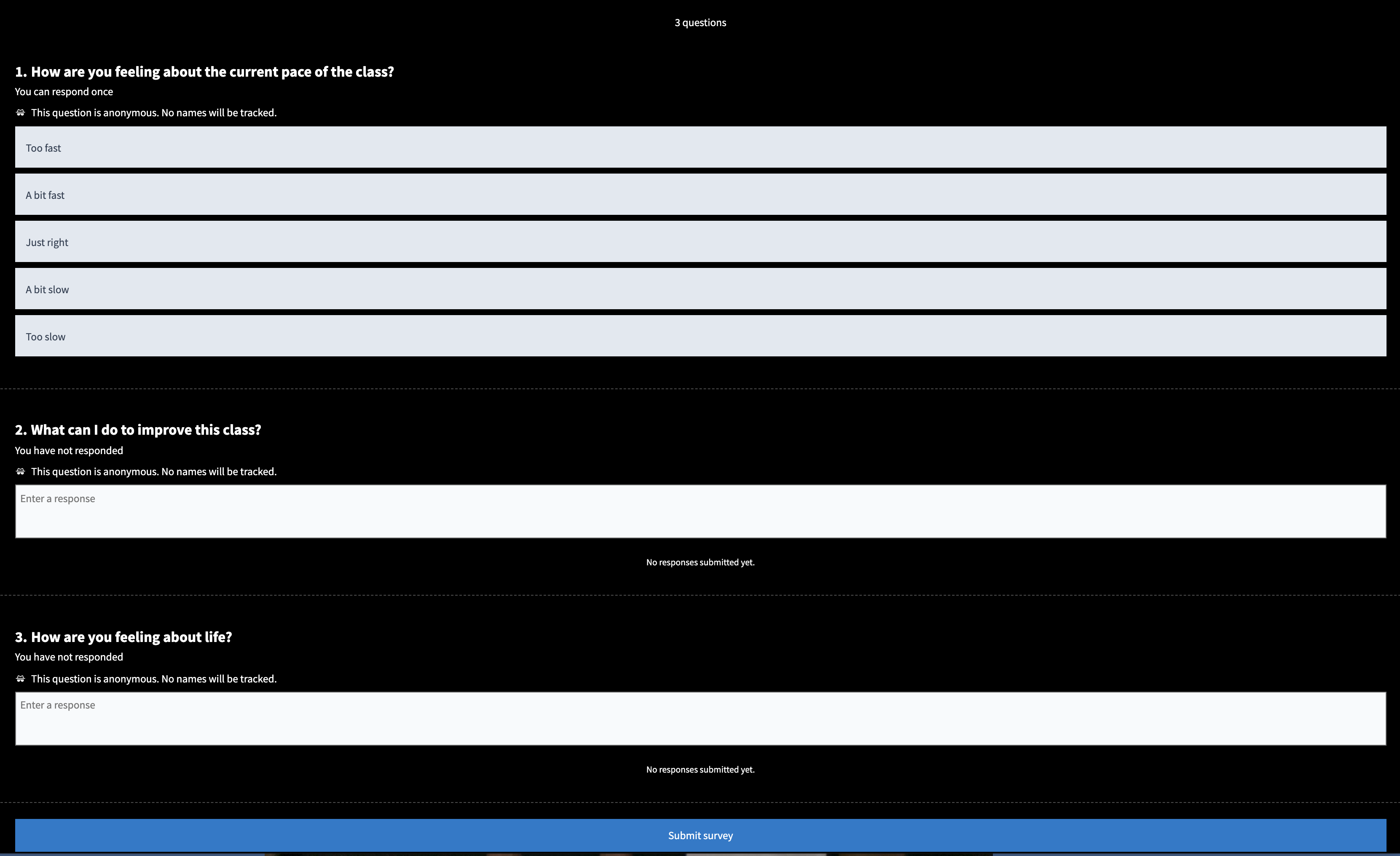
3 question Exit Ticket survey in Poll Everywhere

Need a Poll Everywhere account? Email the ITS Information Desk at help@wlu.edu or call 540.458.4357 (HELP).

Polling for Zoom meetings

  1. Enable Polls in Zoom
  2. Create a Poll
  3. Launch a Poll

Anonymous Ungraded Survey in Canvas

Exit Ticket survey in Canvas


Flipgrid

My Ah-ha Moment! Flipgrid exit ticket
Click to view this Flipgrid exit ticket!

Do you use exit tickets in your class? Have they been helpful? If you have any thoughts to share, we’d love to hear ’em!

Enable Real-Time Transcriptioning in Your Zoom Meetings!

Did you know that you can add closed captioning or transcriptioning to a Zoom meeting?

Zoom provides free, AI-powered live transcription. Transcription is the process in which speech or audio is converted into a written, plain text document. 

Live transcription only supports English and you must you speak clearly for best results. Unfortunately, live transcription is NOT supported in breakout rooms.

NOTE: The accuracy of Zoom’s live transcription feature depends on many variables, such as, but not limited to:

  • Background noise
  • Volume and clarity of the speaker’s voice
  • Speaker’s proficiency with the English language
  • Lexicons and dialects specific to a geography or community

OK, here’s how!

Before your Zoom meeting:

  1. Sign in to the Zoom web portal with your W&L credentials.
  2. In the navigation panel, click Settings.
  3. Click the Meeting tab.
  4. Scroll down to Closed captioning.
  5. Click the toggle to enable it. If a verification dialog displays, click Turn On to verify the change.
    Enabling Closed Caption in Zoom settings
  6. With Closed Captioning enabled, the option to enable live transcription should appear directly below as Enable live transcription service to show transcript on the side panel in-meeting. Check this to enable live transcription.
  7. Click the toggle for Save Captions if you want to enable the ability for meeting participants to save closed captions or transcripts.

During your Zoom meeting:

  1. In a Zoom meeting you are hosting, click the Live Transcript button: Zoom meeting tools with Live Transcript button highlighted
  2. Click on Enable Auto-Transcription: options for Live Transcript in Zoom
    You also have the option to assign a participant to type, manually type closed captions yourself, or copy the URL that you’d provide to a third-party closed captioning service.

As a Zoom Meeting Participant

  1. When enabled by the host, you will see a notification above Live Transcript in the meeting controls, informing you that the service is available.
  2. Click Live Transcript, and then select Show Subtitle. The provided subtitles can be clicked and dragged to move their position in the meeting window.

To adjust the caption size:

  1. Click the up ^ next to Start Video / Stop Video
  2. Click Video Settings then Accessibility.
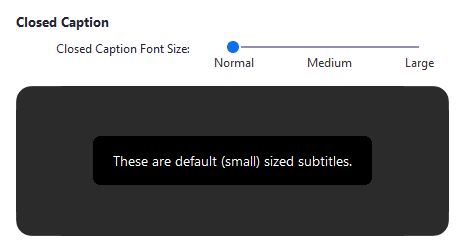
  3. Move the slider to adjust the caption size. 

See Zoom’s guide to closed captioning and live transcription for more information!

Need help? Have questions? Contact the ITS Information Desk at 540.458.4357 (HELP) or email help@wlu.edu

P.S. You can also enable live captions in a Teams meeting, too!

NYTimes: I Actually Like Teaching on Zoom

Viet Thanh Nguyen is a contributing opinion writer at The New York Times and the author of “Nothing Ever Dies: Vietnam and the Memory of War.”

Nguyen is the Aerol Arnold Chair of English and Professor of English and American Studies and Ethnicity at the University of Southern California. @viet_t_nguyen


Here’s an unpopular opinion: I like teaching on Zoom.

Many accounts of teaching on Zoom or other online platforms recount its horrors. And much is horrible: teachers and students without stable internet connections or adequate technology; too much intimacy, with overcrowded homes that teachers or students might find embarrassing for others to see; and not enough intimacy, with the human connection attenuated online.

As a college professor, I, too, miss some of the elements of teaching in a classroom, including the intellectual energy that can flow around a seminar table, the performative aspect of lecturing to a large audience and the little chats that take place by happenstance during breaks or after class with students.

What I don’t miss is my 10-mile drive to campus and back. I don’t miss pondering my wardrobe choices in the morning. The relative informality of the Zoom era means that I would feel overdressed if I wore a blazer to teach. And if I don’t wear a blazer, I don’t have to wear slacks. Or put on shoes. Why would I wear shoes inside my house, anyway?

Continue reading “NYTimes: I Actually Like Teaching on Zoom”

Inspiration from the IQ Center

Just because the IQ Center is located in the Science Building doesn’t mean it’s only mean for STEM projects.

One tool in particular has found remarkably broad use across many disciplines – the laser cutter.

The following recent projects highlight its uses in the area of print making.

sample woodblock with koi and text created in the IQ Center In traditional woodblock printing, artists create designs by removing wood from a block of wood with metal carving tools. The wood is then coated with ink and used to make a print. The laser cutter in the IQ Center can be used in place of the carving tools to remove wood more quickly and more precisely than traditional methods.

sample made from Leigh Ann Beavers’ printmaking class

This semester in Leigh Ann Beavers’ printmaking class, the IQ Center is collaborating on such a project. Students will create designs either digitally or by scanning paper drawings. The edited graphics will be laser engraved in the IQ Center and printed in the print studio using the same techniques as hand carved wood blocks. This process allows students to create a greater number of woodblocks with more detail than would normally be possible in a semester.

A similar technique is used to create rubber stamps which can be used for a number of practical and class-related projects.

white Japanese hachimaki with rubber stamped text in blue

Recently, Janet Ikeda, associate professor of Japanese, inquired about printing on fabric. She was interested in creating a custom Japanese headband called a hachimaki as part of a Lunar New Year video performance. Using the laser cutter, we created a rubber stamp that was able to print directly on fabric and the result looked fabulous.

Dancers wearing the hachimaki (custom headband) for a Lunar New Year video performance.

Regardless of your discipline, please contact Dave Pfaff with any creative technology needs.

NEW! Allow Zoom meeting participants to choose their own breakout rooms!

Self-select breakout rooms is a new Zoom feature that require both the meeting host and participants to be using Zoom 5.3.0 or later. Participants who aren’t using Zoom 5.3.0 or later will have to be manually moved to a breakout room by the meeting host.

Before scheduling your Zoom meeting, do the following:

  1. Update your Zoom client.
  2. Enable breakout rooms:

Instructions for the meeting host:

  1. After you’ve begun the Zoom meeting, click Breakout Rooms in the Zoom tool bar.
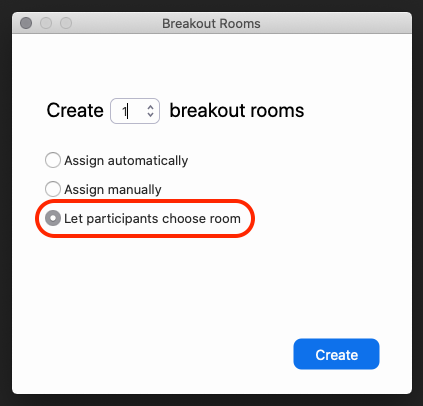
  2.  If you have the latest version of Zoom, you should see the option Let participants choose room.

Clicking on Breakout Rooms in Zoom

You can then rename the rooms (A), edit Breakout Room settings (B), add additional rooms (C), and Open all the Rooms (D).

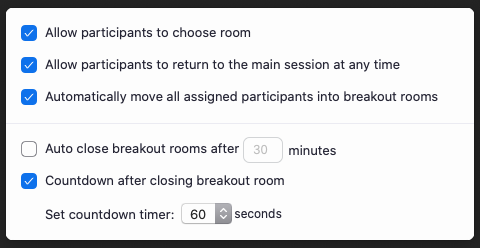
If you click on Breakout Room settings (B), you’ll see:

breakout room settings in Zoom

NOTES:

  • The Recreate button allows you to start from scratch by manually recreate the Breakout Room OR randomly recreating your Breakout Rooms and placing participants into rooms automatically.
  • If the meeting is being recorded to the cloud, it will only record the main room, regardless of what room the meeting host is in.  If local recording is being used, it will record the room the participant who is recording is in. Multiple participants can record locally.

Instructions for participants:

(https://support.zoom.us/hc/en-us/articles/115005769646-Participating-in-breakout-rooms)

Self-selecting a breakout room

If the host has allowed participants to self-select and join breakout rooms of their choosing, participants will be able to view and select from a list of breakout rooms the host has created. They will be able to enter and leave breakout rooms freely. 

Note: Participants not joined with the desktop or mobile app (version 5.3.0 or higher) will not be able to self-select a breakout room. The host will need to facilitate moving these participants manually.  

  1. Click the Breakout Rooms option in your meeting controls. This will display the list of open breakout rooms created by the host. 
  2. Click Join next to the Breakout Room you wish to participant in, then confirm by clicking Join again. 
  3. Repeat as necessary to join other breakout rooms, or click Leave Room to return to the main session. 

Need help with Zoom? Contact the ITS Information Desk at help@wlu.edu, 540.458.4357  (HELP), or stop by Leyburn Library.

How to Record a Presentation with Multiple Speakers in Zoom

Need to record a group presentation? Here are some tips to create a polished recording!

Working assumption:

  • The meeting host should think of themselves as the producer of the recording. 
  • There is one PowerPoint (.ppt file) that will shared by the meeting host.

Before you begin …

  • IMPORTANT! The meeting host and all speakers should update their Zoom client to the latest version.
  • Everyone should plan to use a headset or clip-on microphone, if possible.
    • Need to borrow a headset or clip-on microphone? Contact the ITS Information Desk at help@wlu.edu, 540.458.4357 (HELP), or stop by Leyburn Library.
    • Why? The kind of microphone you use will affect the other participants’ ability to hear you. 
  • The meeting host should check their Zoom Recording settings:
    • Enable “Cloud Recording”.
    • Enable “Record active speaker with shared screen”.
    • Enable “Record thumbnails when sharing”.
    • Enable “Optimize the recording for 3rd party video editor”.
    • Click the Save button.

Five minutes before the meeting begins ….

  • Restart your computer/laptop and close any applications you don’t need to use for the meeting itself.
    • Why? Other applications have a way of intruding and asking for attention from your CPU and broadband connection. 
  • Set up your head set or clip-on microphone.
    • Headset microphones should sit an inch or so away from your face and a few centimeters away from the corner of your lips. Clip-on microphones should sit at the upper side of the chest.

OK, it’s time!

  • The host signs into Zoom with their W&L credentials (either at wlu.zoom.us or within the Zoom client) and starts the meeting. 
  • Do an audio/video check for each speaker, i.e. make sure everyone can start/stop their camera and mute/unmute their microphone.
  • All speakers start their cameras.
  • The meeting host shares screen.
    • Share only the PowerPoint application, not the entire desktop.
  • The meeting host spotlights speaker #1.
  • All other speakers should stop their video and mute themselves.
  • The meeting host turns on “Hide non-video participants“.
  • The meeting host starts a cloud recording.
  • When the speaker #1 is finished, the speaker #2 should start video and unmute audio. Then speaker #1 stops video and mutes audio while the meeting host spotlights speaker #2.
  • Repeat for all speakers.
  • Stop the cloud recording when finished!

Don’t panic if there’s a goof or mistake! After the recording has processed so you can download it, the mp4 file can be edited in Camtasia (Windows or Mac) or QuickTime (Mac). Contact the ITS Information Desk you need access to either of those applications!